Reframe Vertical Video to Wide
Turn a 9:16 clip into 16:9 by generating the edges instead of reshooting.
To turn a vertical video horizontal without reshooting, expand the frame instead of cropping it. In MITO you ask for 16:9 and the sides are filled in to match the shot, so your 9:16 TikTok frame becomes a YouTube frame with the same person in the middle and more of the room around them. Expanding works on stills, so for a clip you expand one frame and build from it; that’s covered below.
You can also go the other way: tighten a wide shot into a vertical one. And if you work on campaigns, the same idea scales to a whole placement list. Instead of cropping one master for stories, feed, banner and pre-roll, you recompose it for each size, with the title and the subject kept in frame.
Below are the two examples we made, one for creators and one for agencies, with the exact prompts and what to check before you post.
Why cropping doesn’t work
You filmed it vertical for TikTok. YouTube wants it horizontal. Normally that’s a reshoot, or a crop that cuts off half the frame.
Cropping a vertical shot to 16:9 keeps a thin band across the middle. A face fills the screen, the top of the head goes, and the hands and the desk disappear. Going the other way, cropping a wide shot to 9:16, throws away both sides, and anything that wasn’t dead center falls out of frame.
Expanding does the opposite. The original frame stays whole, and new image is added around it.
Expand 9:16 to 16:9
We started with one vertical frame of a creator at her desk, made with Nano Banana Pro, and asked for the horizontal version:
Expand to 16:9. Keep her exactly the same and extend the room on both sides.
The original 9:16 frame, then the 16:9 expansion. Everything outside the outlined box was added by AI.
The sides were added to match the room. The window on the left now runs to its full width, the bookshelf behind her gained more shelves, books and plants, and the desk runs the width of the frame. The light still comes from the same window.
What to check
Compare the person first. In ours, the room extended well, but her expression changed: she’s mid-sentence in the vertical frame and smiling in the wide one, and her face is a little rounder. That’s fine for a thumbnail or a still post. For a talking-head clip, the face and mouth have to match what you filmed.
If something moved that you asked to keep, say so in a follow-up edit: “Keep her face and expression exactly as in the original.” One change per edit makes it easy to see what fixed it.
Doing it with a video clip
Expanding works on stills. We tested it on a video too: we gave a vertical clip to a video-edit model and asked for 16:9, and it came back vertical, the same shot at the same shape. So for a clip, expand a still first:
- Take the first frame of your vertical clip and expand it to 16:9, as above.
- Use the expanded frame as the start frame for a new clip, and describe the same action.
- Or, if the clip has to stay exactly as filmed, place it in the middle of a 16:9 frame in your editor, with the expanded still filling the sides behind it.
One visual, every placement
Every campaign ends with the same list: stories, feed, banner, pre-roll. Crop one master for all of them and something important falls out of the frame, usually the title or the product.
In MITO you recompose instead. You ask for the same key visual at a new size and the layout is rebuilt for it, with the title and the subject kept in frame.
We made a master key visual on Nano Banana Pro at 2K:
Key visual for a short film called “ICE FISHING”: a figure in a red parka, a camel and a tent on a frozen lake, the title large and bold across the top.
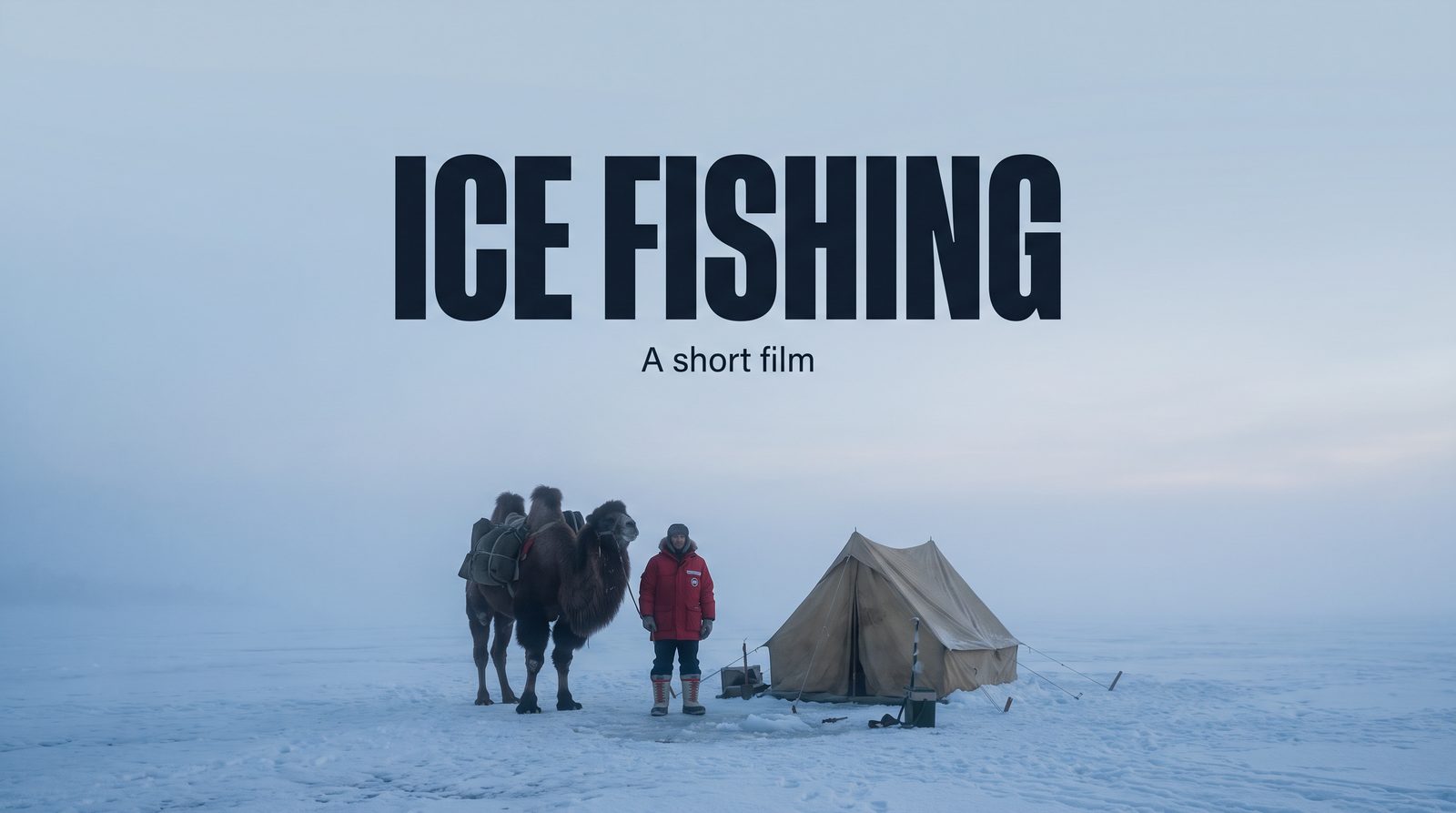
The 16:9 master.
Then we made the 9:16 and 1:1 versions as edits, with the master attached as the reference. For 9:16:
Recompose this for 9:16. Keep the title and the subject in frame. Same light, same style.
And for 1:1, the same sentence with the new size:
Recompose this for 1:1. Keep the title and the subject in frame. Same light, same style.
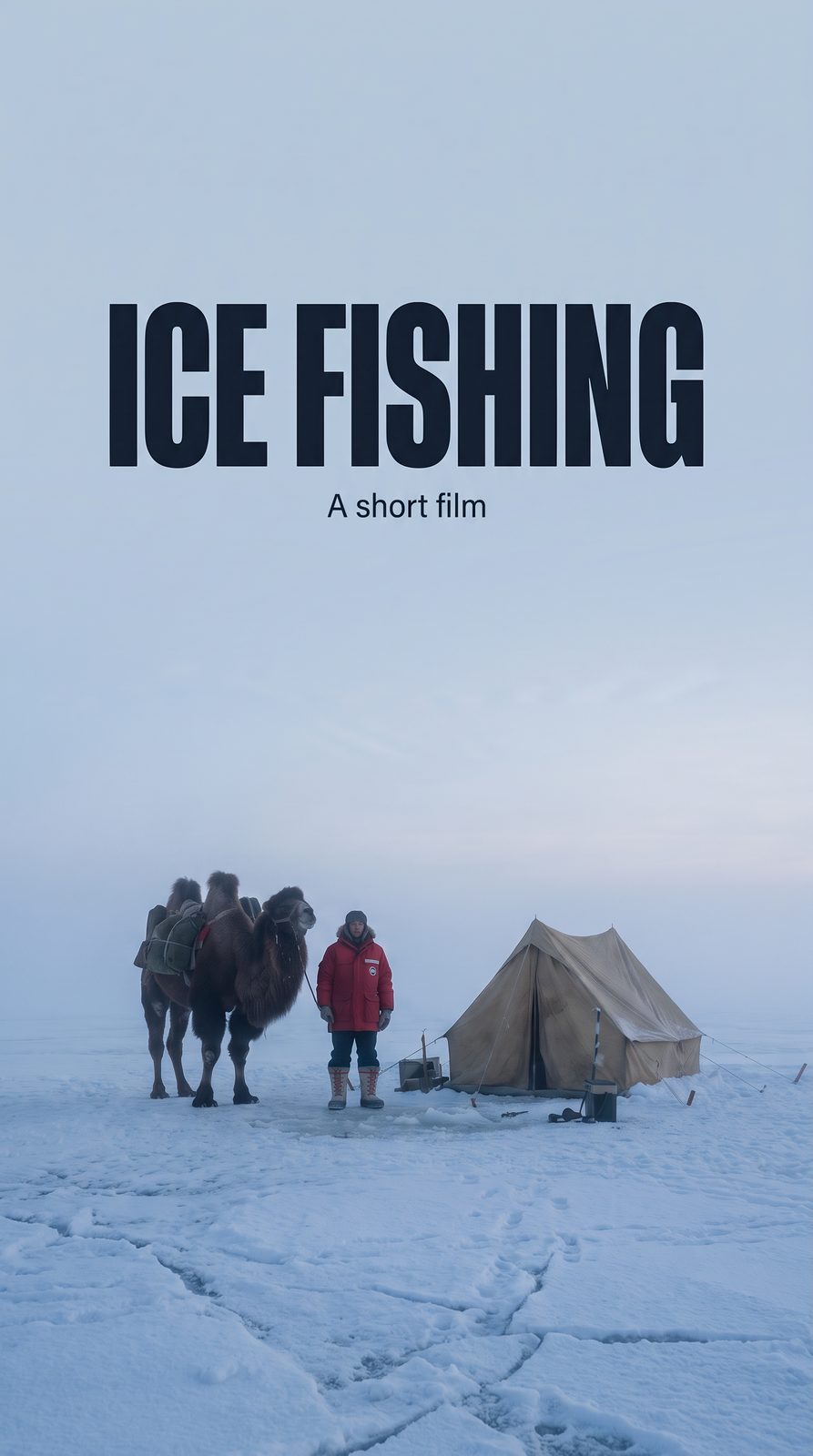
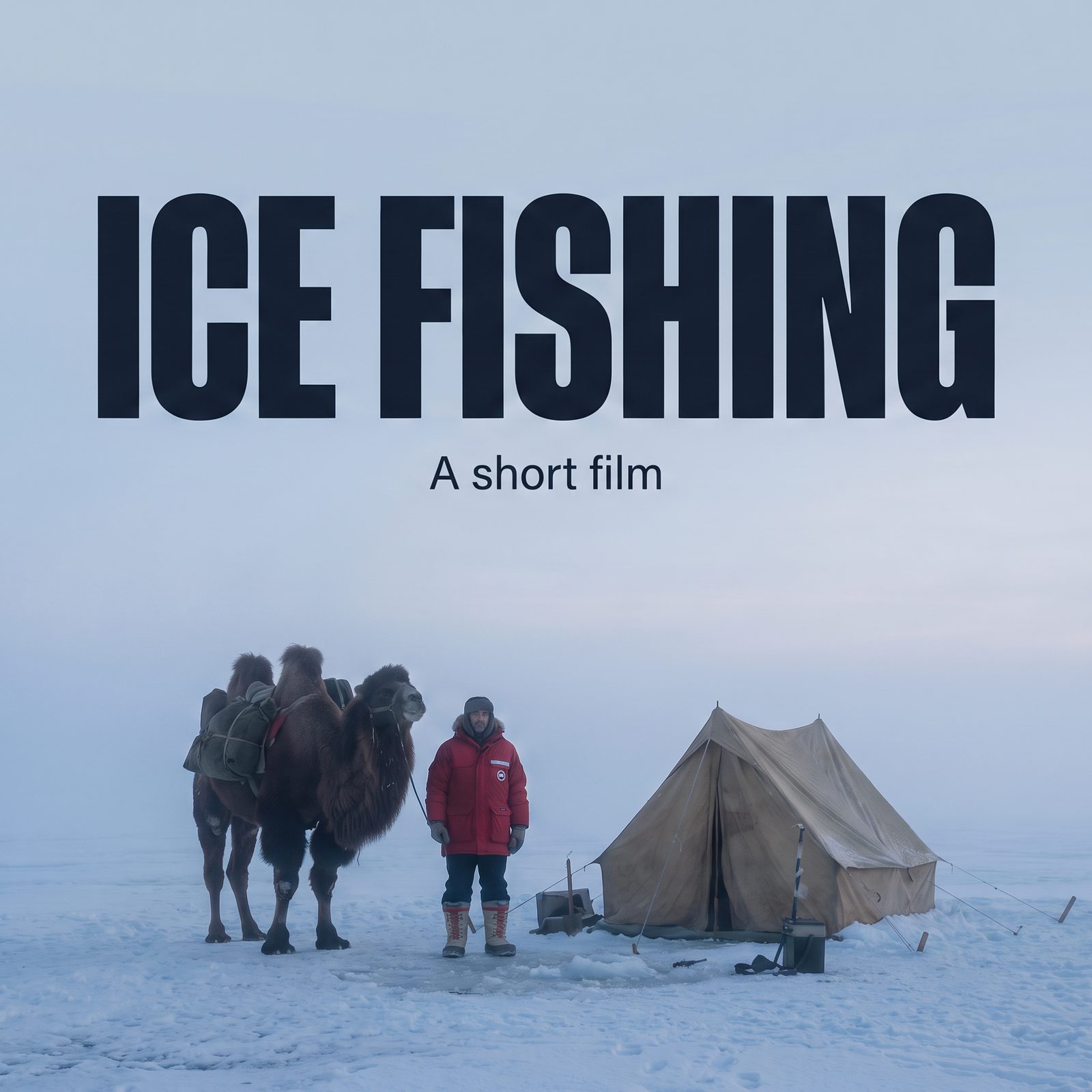
Nothing was cropped. Look at how each layout changed. In the 9:16 version the title stays at the top and the scene drops to the lower third, with more sky and more ice to fill the height. In the 1:1 version the title gets bigger and the figure, camels and tent move closer. The red parka, the misty light and the type style stay the same in all three.
“Keep the title and the subject in frame” is the line that tells the model what can’t move when the layout changes. “Same light, same style” keeps all three versions looking like one campaign.
For video placements
For video, add a Timeline per placement, set its aspect ratio in the Timeline’s settings, and reposition each clip with Transform, all from the same edit. Nothing is generated again; it’s an edit. One Timeline for 9:16 stories, one for 1:1 feed, one for 16:9 pre-roll, each exported separately. Repositioning a clip is still a crop, so keep the subject near the center when you generate footage you’ll reuse across shapes.
Try it
If you’re a creator:
- Open a vertical photo, or the first frame of a vertical clip.
- Ask Director to reframe it to 16:9, and say what to keep: “Keep her exactly the same and extend the room on both sides.”
- Check the face and anything you asked to keep, then post the same piece on YouTube, Reels and TikTok.
If you run campaigns:
- Open the approved key visual.
- Ask: “Recompose this for 9:16. Keep the title and the subject in frame.” Then 1:1.
- Add a Timeline for each video placement, set its aspect ratio and export.
If your list includes fixed banner sizes, How to Make Display Ads at Exact Pixel Sizes With AI covers generating them at exact pixel sizes. For keeping a campaign consistent across every version, see How to Keep AI Video Ads On Brand. To change something inside the frame rather than its shape, see How to Edit Photos With AI by Describing the Change.
Frequently asked
- How do I turn a vertical video horizontal without cropping?
Expand the frame instead of cropping it. Ask for 16:9 and the sides are filled in to match the shot, so the original vertical frame stays whole in the middle. In MITO this works on stills: for a clip, expand its first frame to 16:9 and use it as the start frame for a new clip.
- What's the difference between expanding and cropping?
Cropping cuts parts of the frame away to fit a new shape. Expanding keeps the whole original and adds new image around it, such as more of the room on each side. Expanding keeps everything you filmed.
- Can I go from horizontal to vertical too?
Yes. You can tighten a wide shot into a vertical one. For key visuals, ask for a recompose, such as “Recompose this for 9:16. Keep the title and the subject in frame,” so the layout is rebuilt for the new size instead of cropped.
- How do I resize one key visual for stories, feed and banners?
Recompose it for each size with the master as the reference. We used one prompt per size: “Recompose this for 9:16. Keep the title and the subject in frame. Same light, same style.” Then the same for 1:1.
- Does the person change when you expand a photo?
They can. In our 16:9 expansion the room was extended well, but the woman’s expression changed from mid-sentence to a smile. Always compare the face to the original, and ask for a follow-up edit if it moved.
The AI tool for cinematic video.
Generate, direct, and publish professional videos, powered by the best AI models.