See the Box Before You Print It
Put your label on a real-looking box, in a real-looking room, before the print run.
You can mock up packaging with AI by starting from one thing that has to stay right: your product. Turn a photo of it into a reference sheet that shows it from every side, save that sheet as an Element in MITO, and then describe each idea in one line. Every mockup uses the real shape, the real colors and the real logo.
Before you order 500 jars, a run of tote bags or a new label, you want to see it. That usually means a designer, a sample run and a few weeks. A mockup won’t replace the sample, but it tells you which idea is worth sampling.
We took one product photo of a Calmara jar and made a sheet from it, then three prototypes from the sheet: a winter gift edition, a new product for the range, and merch for the shop. Here’s each one with the exact prompt.
Start with the product sheet
This is the photo we started from. One jar, one angle.
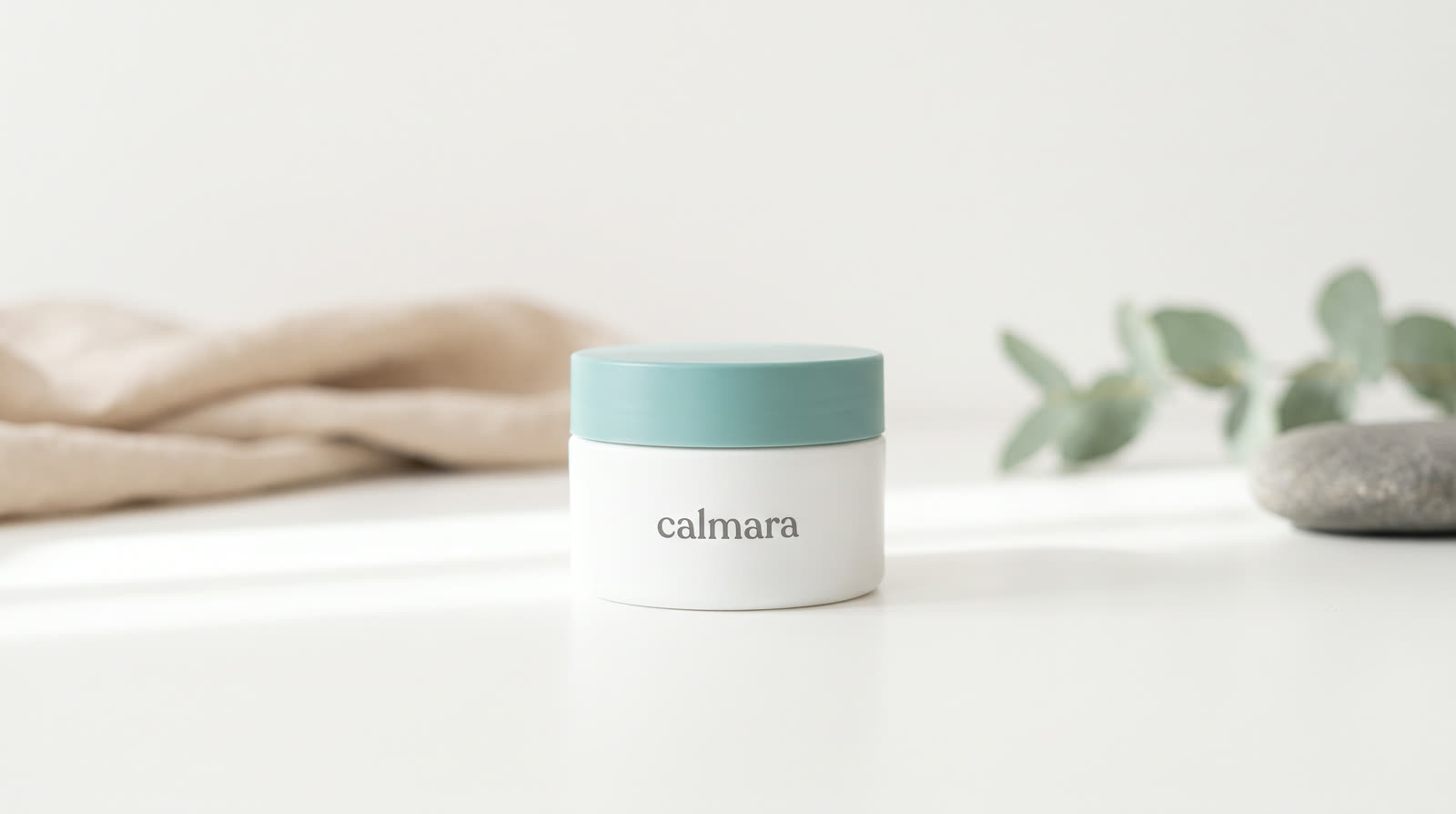
The starting photo: one angle of the jar.
One angle isn’t enough for a model to draw the jar from the side, open, or from above. So the first step is a reference sheet: the same jar from every side, plus the logo on its own.
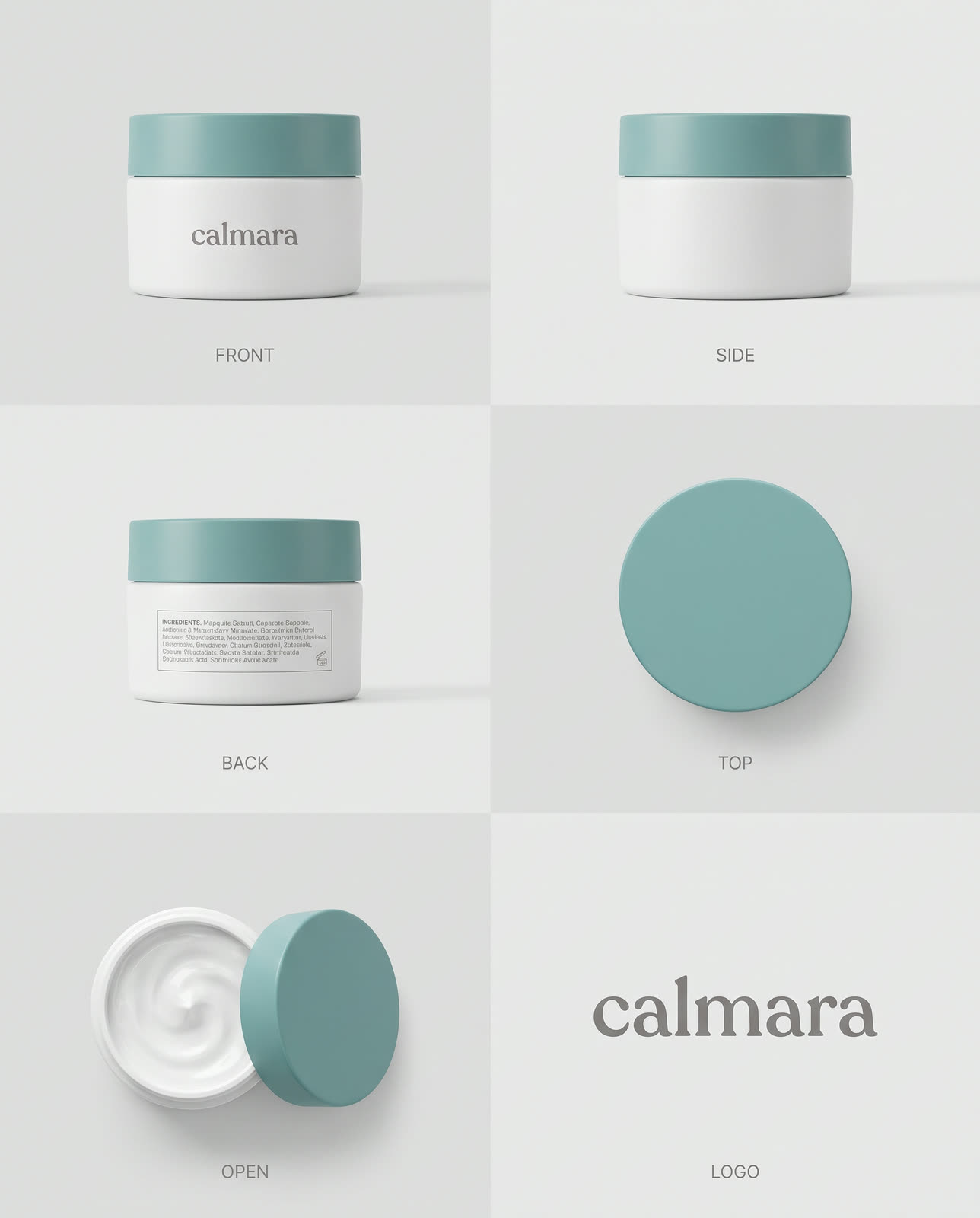
The sheet: front, side, back, top, open and the logo, saved as an Element.
In MITO, Object Builder does this from one product photo. Save the result as an Element, and you can attach it to any prompt by name. Our sheet was made with Nano Banana Pro using a sheet prompt rather than the Object Builder screen, so the layout of yours may look a little different.
Every prototype below uses this sheet as its reference. That’s why the jar shape, the teal and the wordmark carry across all three. Without it, the model invents a jar that’s close to yours, and close is no use when you’re deciding what to print. (More on building product sheets.)
Three prototypes from one sheet
Once the sheet is saved, each idea is one prompt. These are the three we made, all with Nano Banana Pro.
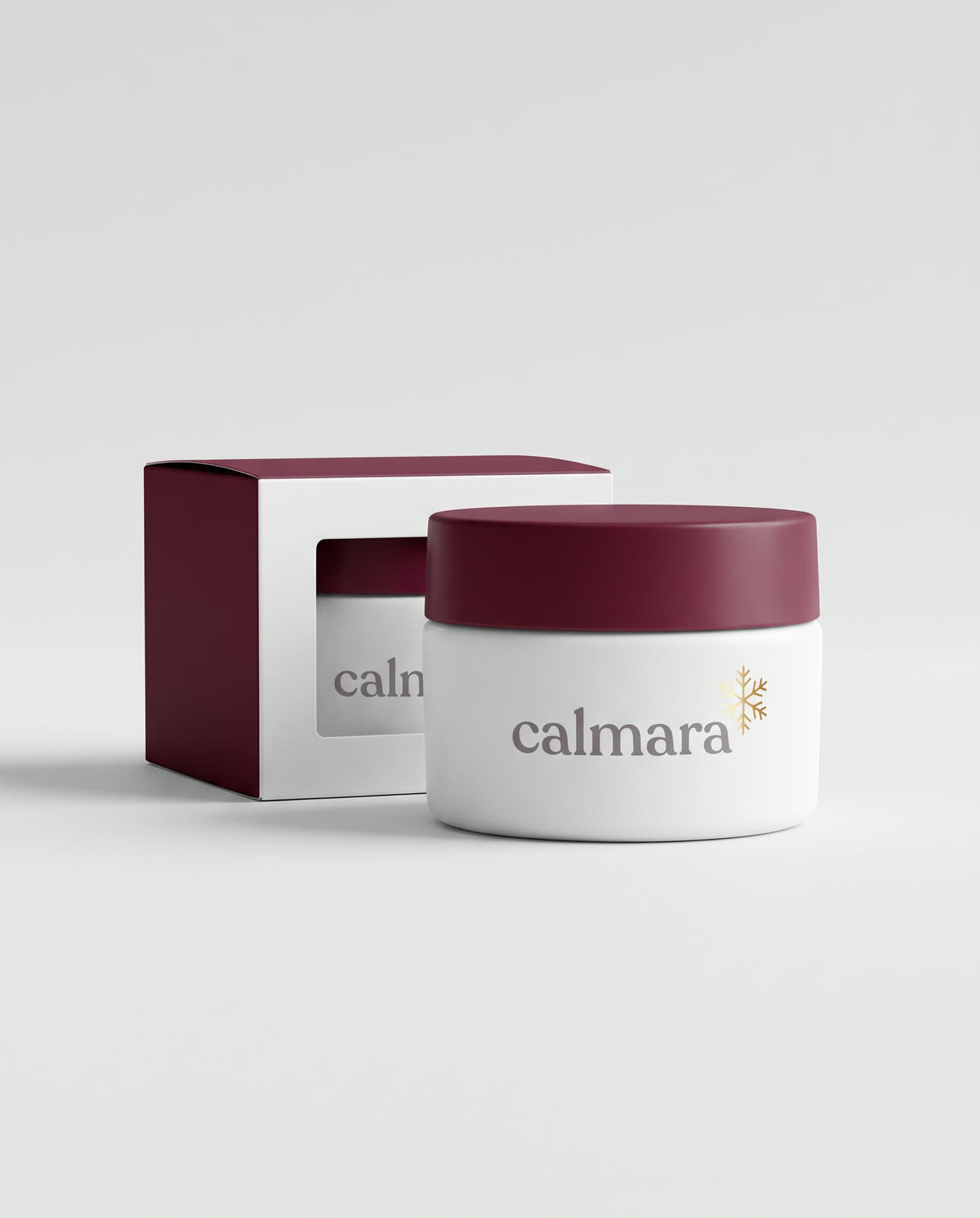
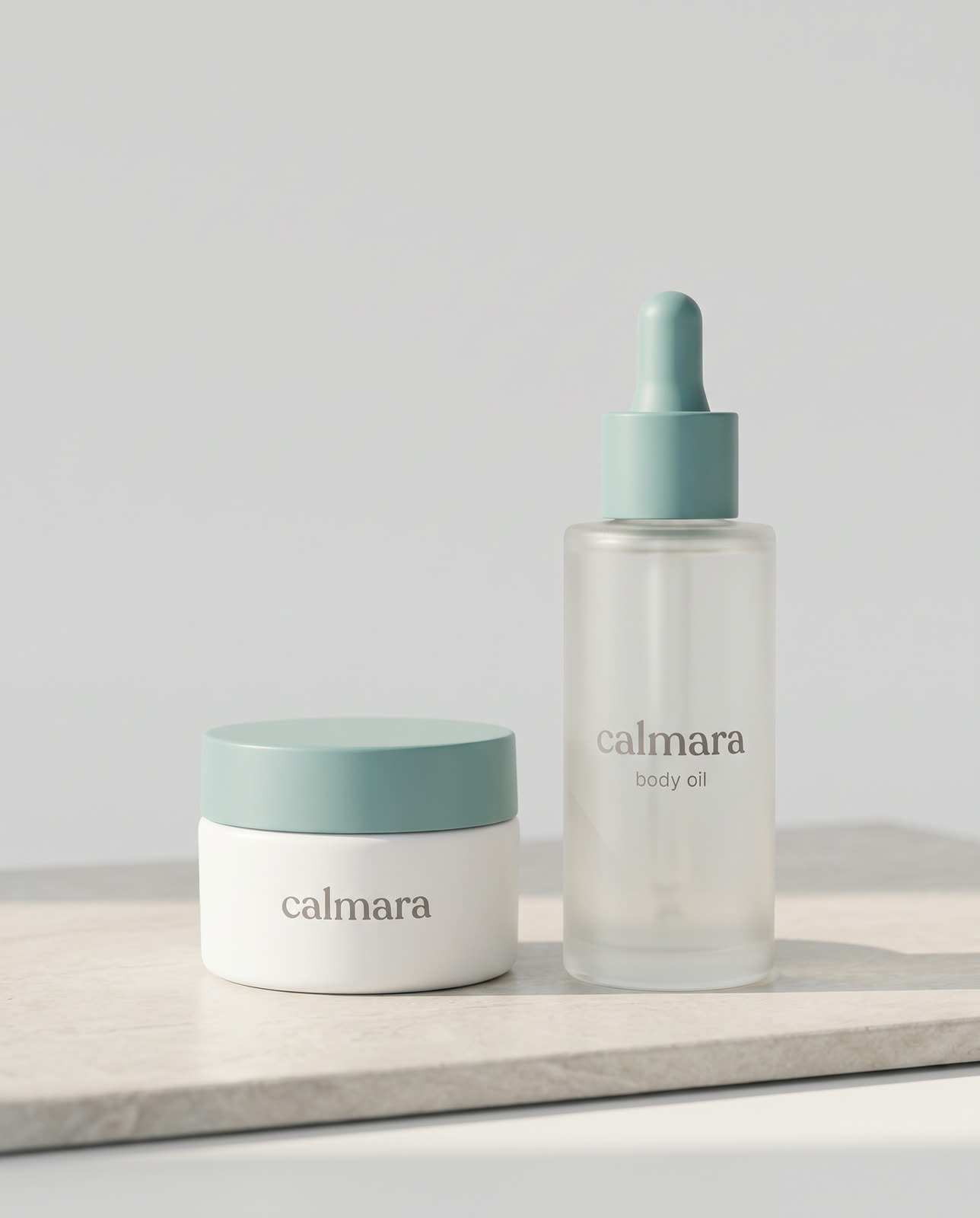
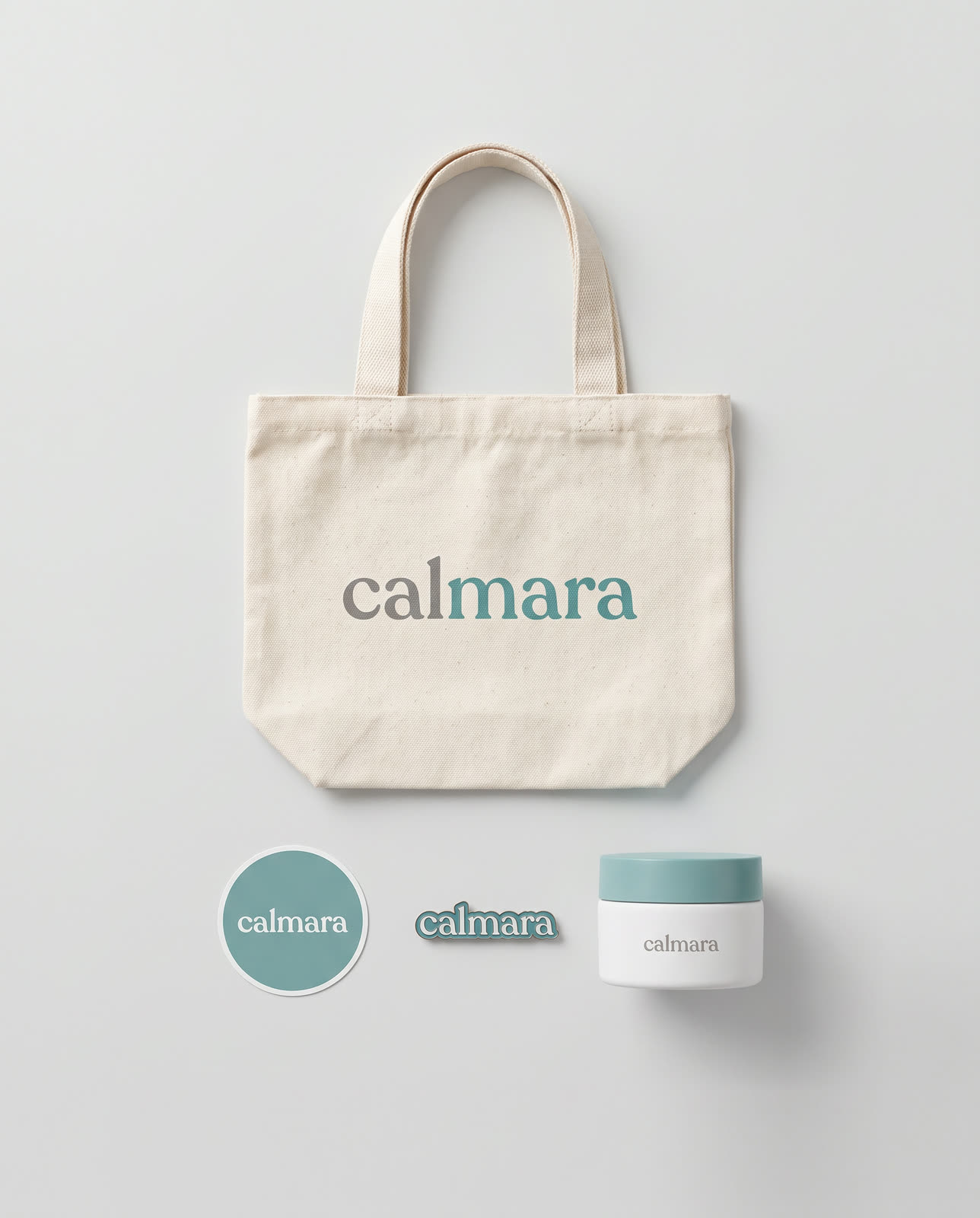
The prompts, word for word:
- Packaging: “A limited winter edition of the jar: deep burgundy lid, a small gold snowflake by the logo, in a matching gift box with a window.”
- New product: “A body oil for the same range: frosted glass bottle, the same matte teal cap and wordmark, next to the original jar.”
- Swag: “Merch for the shop: a canvas tote with the teal wordmark, a round sticker and an enamel pin, flat lay with the jar.”
Look at what the prompts don’t say. None of them describe the jar’s shape, the shade of teal or the font. The sheet carries all of that. The prompt only has to say what’s new: a burgundy lid, a frosted bottle, a tote.
Putting the original jar in the frame helps too. In the body oil shot, the jar sits next to the new bottle, so you can judge whether the two look like one range. A product shown on its own can look right and still not match the rest of your shelf.
Check it before anyone sees
A mockup is a picture, not a print file. Zoom in before you show it to anyone, and look for these:
- Small text. The ingredient list on the back of our sheet looks like a label from a distance, but up close it’s made-up words. Any fine print in a mockup is filler. Your printer needs your real copy.
- The logo. On our tote, the prompt said “the teal wordmark” and the model made the word half gray, half teal. That might be an idea worth keeping, or it might be wrong. Decide on purpose, and fix it with a one-line edit if it’s wrong.
- Proportions. Check that the box would actually hold the jar, and that the new bottle sits at a believable size next to the original.
- Colors on screen. A burgundy on screen won’t match a printed burgundy exactly. Use the mockup to pick a direction, then match the exact color with your printer.
Ideas worth prototyping
Anything you’d normally have to pay for before you could see it is a good candidate.
- Packaging: a seasonal edition, a gift box, a refill pouch, a new label.
- New products: the next item in your range, in the same design language.
- Swag: a tote, stickers, a staff apron, a cap for the team.
- In store: a shelf display, a window poster, the counter card.
Start with the one you’re closest to spending money on. If you’re about to order a gift box for the holidays, mock up three versions of the gift box first.
From mockup to printer
The mockup’s job is to help you decide, then to brief whoever makes the real thing.
- Make two or three versions of the same idea. Change one thing each time: the lid color, the box style, the sticker shape.
- Show the best two to a few customers. Ask which one they’d pick up. You’ll learn more from two options than from one.
- Send the winner to your printer as the brief. Put the mockup next to your real logo file and your real label copy, so they can see what you want and work from the actual artwork.
If you also want to see the new product in use, the same sheet works for video. How to Keep AI Video Ads On Brand covers using it across a whole campaign, and Introducing Elements explains how saved Elements work in any prompt.
Try it
- Open Object Builder with a photo of your best seller and save the sheet as an Element.
- Ask Director for one idea: “A limited winter edition of our jar with a deep red lid, in a gift box.”
- Zoom in and check the text, the logo and the proportions.
- Show the best two to a few customers, then send the winner to your printer as the brief.
Frequently asked
- Can AI make packaging mockups?
Yes. Start with a reference sheet of your product, save it as an Element in MITO, and describe each packaging idea in one line. The sheet keeps the shape, colors and logo the same in every mockup, so you only have to describe what’s new.
- What is a product reference sheet?
A product reference sheet shows one product from several angles on a plain background: front, side, back, top, open, and the logo on its own. AI models use it to draw the product correctly from any angle. In MITO, Object Builder makes one from a single product photo.
- Can I send an AI mockup straight to a printer?
Use it as the brief, not the print file. Small text in a mockup, like an ingredient list, is usually made up, and on-screen colors won’t match print exactly. Send the mockup alongside your real logo file and label copy.
- How do I keep my logo right in AI mockups?
Include the logo in your reference sheet, save the sheet as an Element and attach it to every prompt. Then zoom in on each result. If the logo changes, fix it with a one-line edit instead of starting over.
- What can I prototype besides packaging?
New products in the same range, merch like totes, stickers, aprons and caps, and in-store pieces like shelf displays, window posters and counter cards. Anything you’d normally pay for before you could see it is worth mocking up first.
- Should I test mockups with customers?
Yes. Make two or three versions of one idea, then show the best two to a few customers and ask which they’d pick up. It’s cheaper to learn which one people like before the print run than after.
The AI tool for cinematic video.
Generate, direct, and publish professional videos, powered by the best AI models.