A Second Angle From One Take
Get the reverse shot out of footage you already have, without going back.
Most creators film on one camera, from one spot. That’s fine until the edit, when you’ve got nothing to cut to and every jump cut shows: the spot where you trimmed out a pause or a retake and your head suddenly skips to a new position. A second angle hides the cut and makes a single-camera video feel like a two-camera setup.
You can make that angle after the fact. Take one frame from your video and ask for the same moment from a different camera position. The person, clothes, room and light stay the same. Only the camera moves.
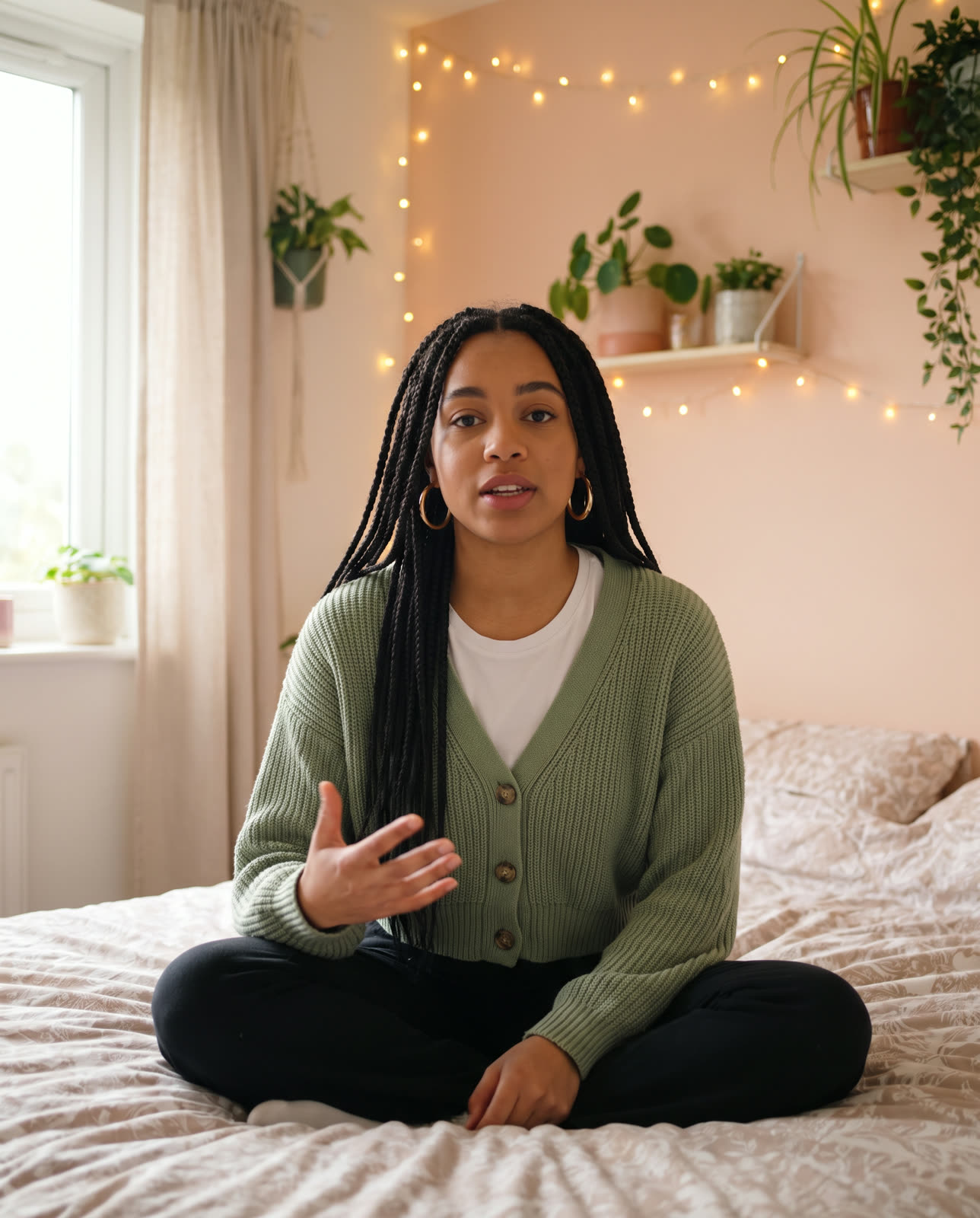
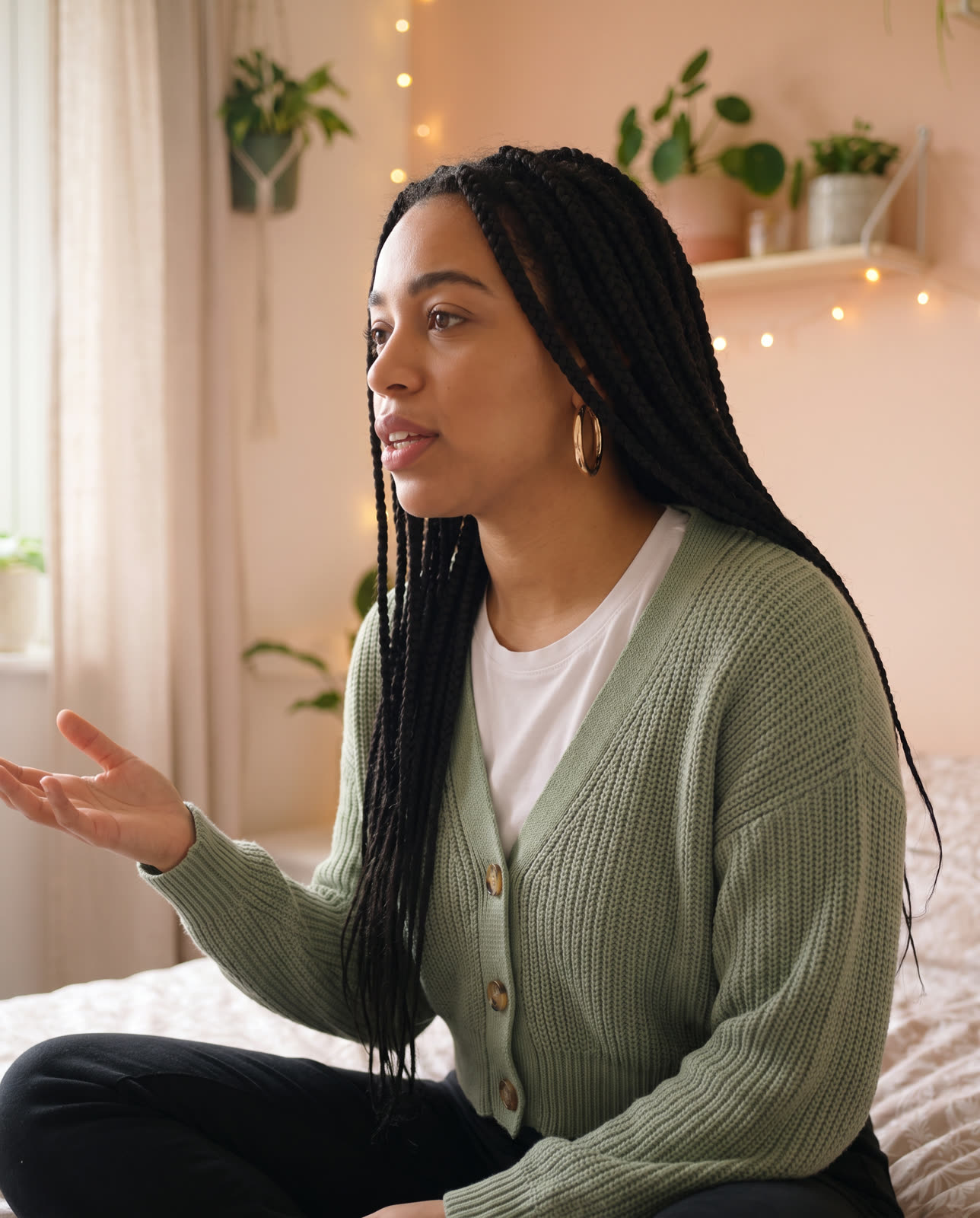
Here’s the one we made in MITO with Nano Banana Pro, from a single prompt. Our “original” is generated too, so we could show the whole process, but the prompt works the same on a frame from your own video.
The prompt
The same moment from a second camera: a close-up from the side.
That’s all of it. Two parts are doing the work:
- “The same moment” tells the model to keep everything in the frame as it is: the person, the braids, the hoops, the cardigan, the fairy lights. Without it, you’re asking for a new picture, and you’ll get a new room.
- “From a second camera: a close-up from the side” says where the camera moved and how tight the shot is. Say both. “From the side” alone could come back wide.
Compare the two frames. The same hoops, the same cardigan, the same lights on the same wall, from a different spot in the room. That’s what makes the cut between them believable.
Turning the stills into clips
A still holds for a second at most before it looks frozen. So we turned both frames into short clips and cut between them, the way you’d cut a real two-camera setup.
0:00–0:05 front, talking
0:05–0:07 side angle, on the pause
0:07–end front, finishing the line
We made two clips in MITO, both with Veo 3.1 Fast at 720p:
- The front clip, 8 seconds, 800 credits. The original frame as the start frame, with one line for her to say: “Okay, so this is the setup I use every single morning… and honestly, it changed how I plan my whole week.” We also asked for a locked-off camera, her voice and room tone only, and no music.
- The side clip, 4 seconds, 400 credits. The generated side angle as the start frame. No dialogue: “She pauses between thoughts: she closes her mouth, gives a small nod and a slight smile, and her open hand eases down. Her mouth stays closed, she does not speak.” Same locked-off camera, room tone only.
The front clip carries the words. The side clip only has to cover a pause, so it has nothing to say.
Cutting on the pause
The side clip’s mouth doesn’t follow your audio, so it can’t sit under a word. Find a gap in the speech and cut there. We ran the front clip’s audio through a silence check and the longest gap was 0.45 seconds, at 4.8 seconds in, before “and honestly”. We cut to the side angle in the middle of that gap.
Then, instead of laying the side angle over the front clip’s audio, we held the pause: 2.2 seconds of the side clip with its own room tone, then back to the front frame at the same moment we left it. It plays like a creator taking a beat before the second half of the sentence. Because the front clip picks up exactly where it stopped, her hands and posture match on the cut back.
Two things to fix before you cut:
- Black bars. Veo 3.1 Fast makes 9:16 or 16:9. Our frames are 4:5, so both clips came back 720×1280 with black bars above and below the picture. We cropped them to 720×890 before editing.
- The start of the side clip. Even with “her mouth stays closed” in the prompt, she kept moving her mouth for about the first 1.5 seconds, carried over from the talking pose in the start frame. We used the clip from 1.8 seconds on, once her mouth had closed and she’d started to smile.
Other angles worth asking for
The same pattern works for any camera position. Keep “the same moment” and change the second half:
- “The same moment from a second camera: a wide shot from across the room.”
- “The same moment from a second camera: a close-up on her hands.”
- “The same moment from a second camera: a high angle from above, looking down.”
Make two or three and you have options in the edit. Check each one against the original before you use it: the earrings, the hair, anything on the wall. If one detail changed, edit the still with one sentence (“Keep everything the same, add the gold hoop earrings back”) rather than generating again. How to Edit Photos With AI by Describing the Change covers that.
Try it
- Pause your video where you’d want a cutaway and export that frame.
- Ask for “the same moment from a second camera” and say where the camera is and how close.
- Check the details against your original, and fix anything that changed with a one-line edit.
- Use it as the start frame of a short clip where you listen or nod with your mouth closed, and ask for a fixed camera.
- Cut to it on a pause in your audio, not mid-word, and cut back to your footage where it left off.
Two more shots you can make from footage you have: How to Make an AI Morph Transition Between Two Clips and How to Make B-Roll of Yourself With AI.
Frequently asked
- Can AI make a second camera angle from a video I already filmed?
Yes. Export one frame from your video and ask for “the same moment from a second camera,” saying where the camera is, for example “a close-up from the side.” We made ours with Nano Banana Pro. It keeps the person, clothes and room and moves only the camera.
- What prompt should I use for a different camera angle?
Start with “The same moment from a second camera:” and add the position and framing: “a close-up from the side,” “a wide shot from across the room,” “a high angle from above.” “The same moment” is what keeps everything else unchanged.
- How do I use a second angle in my edit?
Cut to it where you’d otherwise have a jump cut, such as a trimmed pause or a retake. For anything longer than a second, use the new angle as the start frame of a short video clip. We made a 4-second side clip with Veo 3.1 Fast and cut 2.2 seconds of it into a pause in the front clip.
- Will the person's mouth match what I'm saying in the new angle?
No. The generated angle doesn’t follow your audio. Cut to it on a pause, a reaction or a gesture, not in the middle of a sentence.
- Why did details change in my AI camera angle?
The prompt probably didn’t say “the same moment,” or the frame was too small to read details from. Use a sharp frame, keep “the same moment” in the prompt, and fix any changed detail with a one-sentence edit.
The AI tool for cinematic video.
Generate, direct, and publish professional videos, powered by the best AI models.