B-Roll of Yourself From a Photo
One photo becomes the cutaways that cover every edit in a talking-head video.
B-roll is the footage you cut to while you’re talking: you making coffee, walking to the train, at your desk. It makes a talking-head video feel like a day in your life instead of one long shot of your face. It’s also the first thing to go when you’re filming alone, because every one of those shots is another setup, another outfit, another hour.
With AI video you can make it from one photo of yourself. Upload the photo as a reference, describe the scene, and the model puts you in it.
Here’s one we made in MITO with Omni 1.2, from one photo and one line of prompt.
What the prompt needs
The prompt is short on purpose. It has four parts:
- Who: “the same woman”. With the photo attached, this tells the model to keep her face, hair and build, not invent someone similar.
- Where: “a sunny kitchen”. One place, a few words. The model fills in the rest.
- One action with a small payoff: “tastes it and smiles”. B-roll is a few seconds long. One thing happens, and it ends somewhere.
- How it’s filmed: “handheld”. This one is easy to forget and matters most. Your real footage was shot on a phone in your hand. If the B-roll is a smooth tripod shot, it won’t sit next to it.
That’s enough. Adding more (“golden hour, shallow depth of field, cinematic”) pushes it toward a commercial and away from the rest of your video.
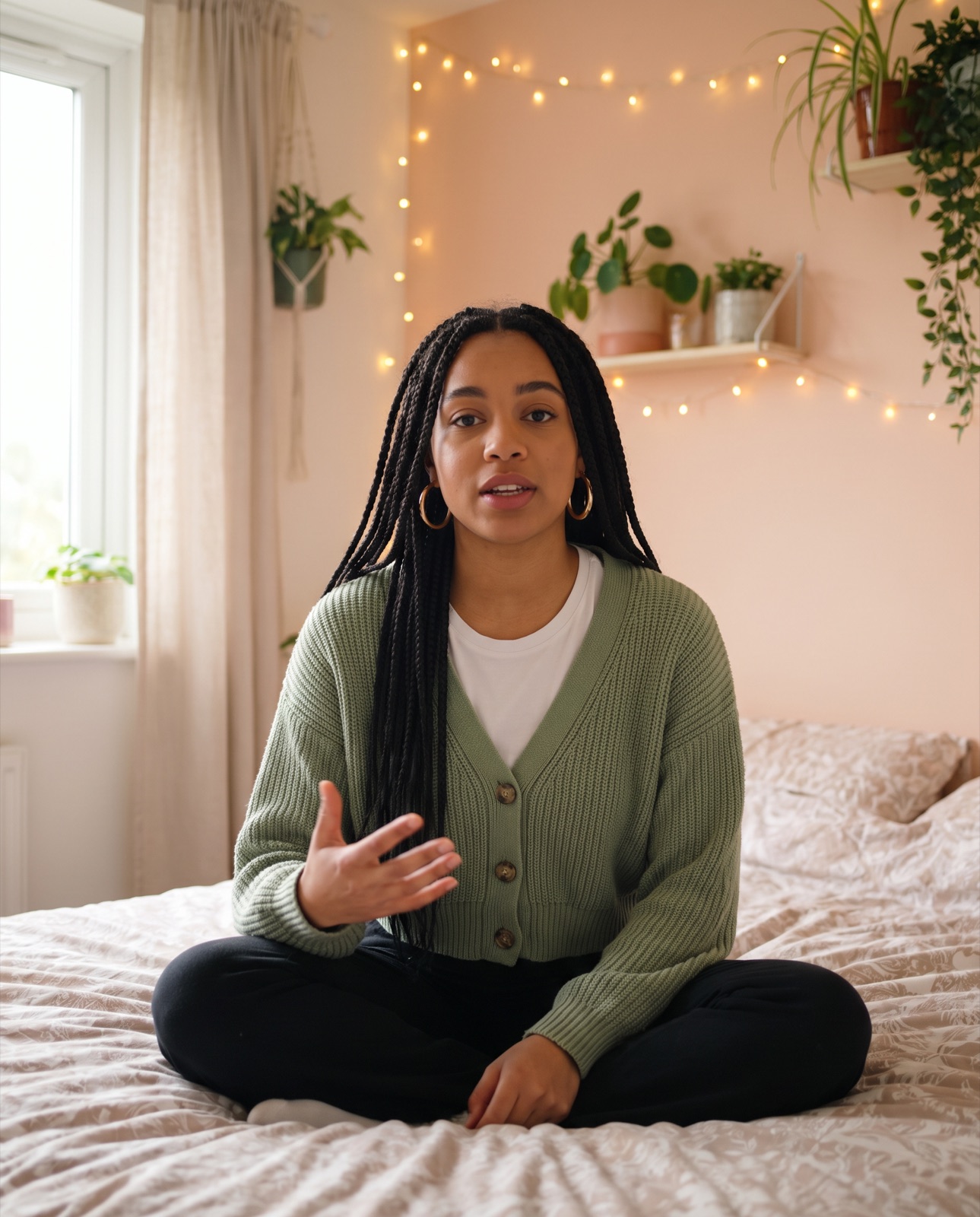
Pick the right photo
The reference photo does most of the work of keeping it you. A good one:
- Shows your face clearly, in even light. No sunglasses, no heavy shadow across half your face.
- Shows what you’d be wearing in the video, if the B-roll is meant to be the same day.
- Is just you. A group photo makes the model guess which person you mean.
Compare the two above. The model kept her face, her braids and her gold hoops. It swapped the sage cardigan for a camel sweater, because our prompt said nothing about clothes. For a different day that’s fine. If the B-roll has to match the outfit in your talking clip, name the outfit in the prompt too.
If you’ll make a lot of B-roll of yourself, build a character sheet from your photo once and save it as an Element, so every scene uses the same reference. How to Keep AI Video Characters Consistent walks through that.
B-roll that fits most videos
Think about what you’re talking about, then what you’d be doing if someone were filming your day:
- Cooking, or making coffee in the morning
- Studying in a library, or working at a desk
- Walking to the train, or through a street in your city
- Unpacking something that just arrived
- Reading on the sofa, or writing in a notebook
Here are three of those, made from the same reference photo as the cooking clip. We made each one as a still first, with Nano Banana Pro, so it can be the start frame of a clip.
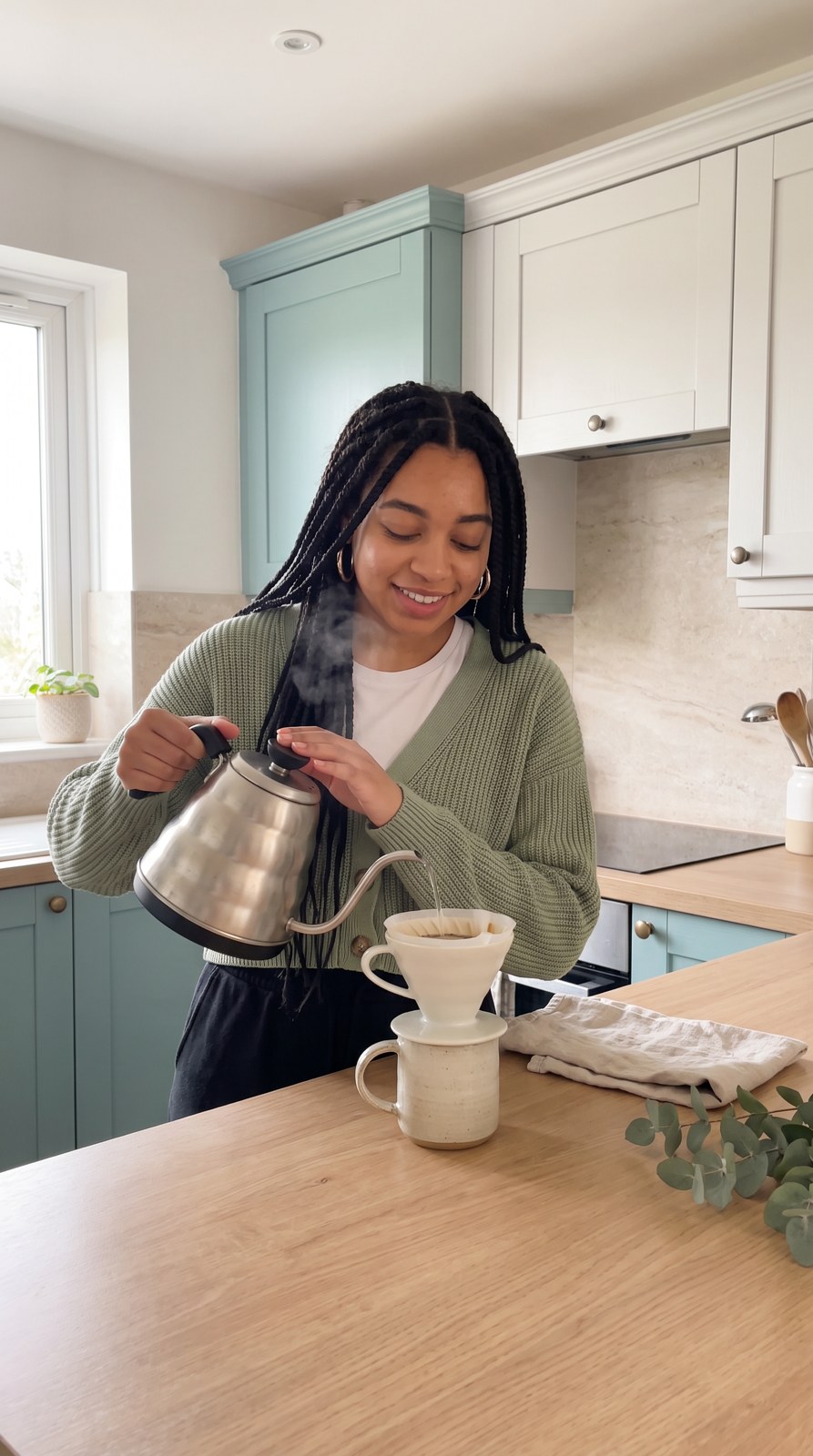
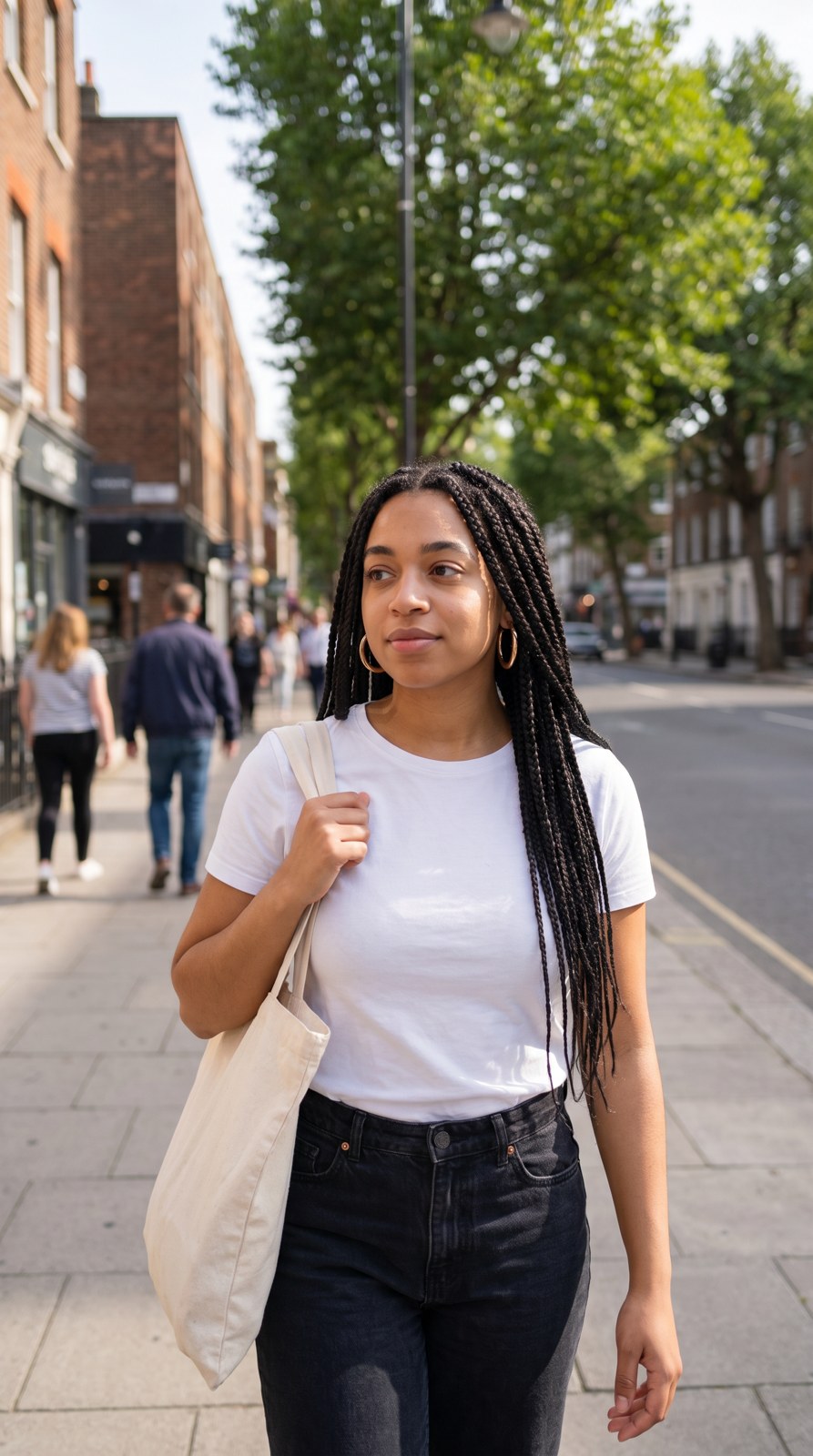
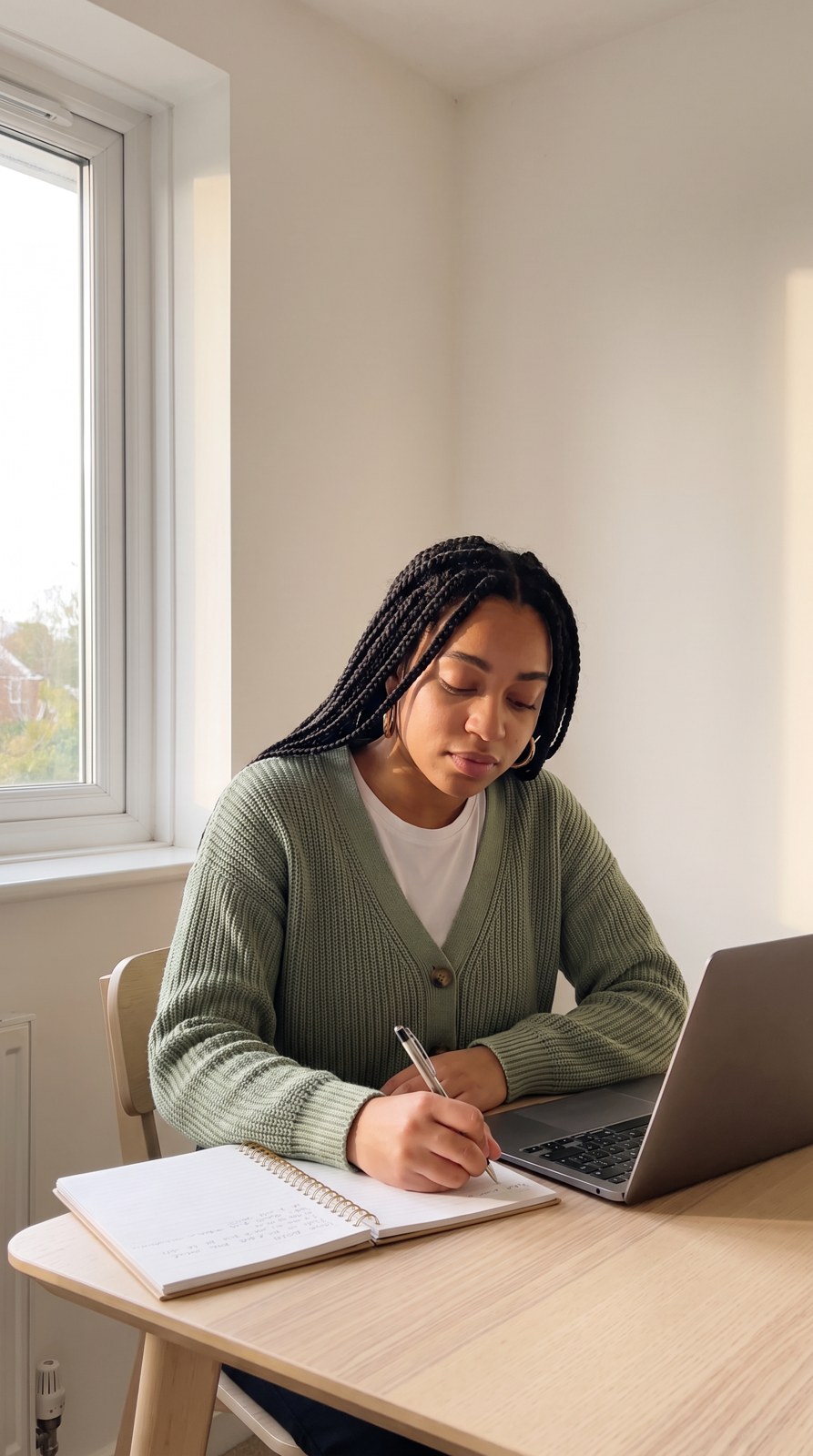
Keep each one to a single action and a few seconds. You’re cutting to it for two or three seconds while your voice carries on underneath, not telling a separate story.
B-roll in a real edit
Two videos from creators’ own YouTube channels show the pattern well.
“Step up your Filmmaking : The Importance Of B-Roll”, Peter McKinnon. He talks to camera in a kitchen and keeps cutting away to a drone, snowy fields and colored smoke. Each cutaway is short next to the stretches of him talking.
“Make It Count”, Casey Neistat. A trip around the world told almost entirely in B-roll: airports, car windows, maps, city streets. A couple of seconds per shot is enough.
What you’re making with AI is the same kind of shot: a few seconds of you doing something, cut in between the shots of you talking.
Cutting it in
Put your talking clip on the Timeline and lay the B-roll over it where you mention the thing: “I’ve been cooking more this year” is where the pasta goes. Keep your audio running underneath, so your voice carries across the cut.
Trim the first half-second of every generated clip. Models often start slowly, and the shot is better once it’s moving. For more on cutting AI clips together, see How to Edit AI Footage So It Looks Like One Film.
Try it
- Pick one clear, well-lit photo of yourself.
- Write one line: “The same woman/man [doing one thing] in [one place], handheld.”
- Generate a short vertical clip with the photo attached as a reference.
- Lay it over your talking clip on the Timeline, where you mention it.
Two more shots you can make from footage you have: How to Make an AI Morph Transition Between Two Clips and How to Get a Second Camera Angle From Footage You Already Shot.
Frequently asked
- What is B-roll?
B-roll is secondary footage you cut to while the main audio keeps going, like shots of you cooking or walking while you talk over them. It breaks up a talking-head video and shows what you’re describing.
- Can AI make B-roll of me from a photo?
Yes. Upload one clear photo of yourself as a reference and describe the scene, for example “the same woman cooking pasta in a sunny kitchen, tastes it and smiles, handheld.” We made ours with Omni 1.2 and an image reference.
- How do I make AI B-roll look like my phone footage?
Add “handheld” to the prompt and leave out words like “cinematic” or “shallow depth of field”. Keep it vertical if your video is vertical, and keep each clip to one simple action.
- How long should AI B-roll clips be?
Generate around 5 seconds and use two or three seconds of it. Trim the slow start, and cut away while the action is still moving.
- How do I keep my face the same across lots of B-roll clips?
Use the same reference photo every time, or turn it into a character sheet saved as an Element so every generation draws on the same reference.
The AI tool for cinematic video.
Generate, direct, and publish professional videos, powered by the best AI models.