How to Plan an AI Filmmaking Project Before Your First Shot
Story, scenes, references, start frames, takes, then the edit. Six decisions, and the order is the whole job.
An AI filmmaking project is easier to direct when you make the creative decisions in order: story, scenes, visual references, start frames, video takes, then the edit. In MITO, Director turns a brief or a script into a storyboard, Storyboard is where you plan scenes and generate takes, and Production is where you assemble and export the cut. Settle the story and the visual direction before you generate any video, so every take has a job to do.
The walkthrough above runs 12:49 and was recorded on January 29, 2026. The written steps below are the current ones. Where the interface in the video differs, follow the text.
1. Shape a story you can show
Start with a brief, a concept or a script that describes what the audience will actually see. You can develop it with Director, or start by hand if the story is already clear in your head.
Open Storyboard and ask Director to break the script into scenes. You can also start empty and add scenes yourself. Either way, read back the scene narratives and durations it produces before you go any further. This is the cheapest moment in the whole project to change your mind.
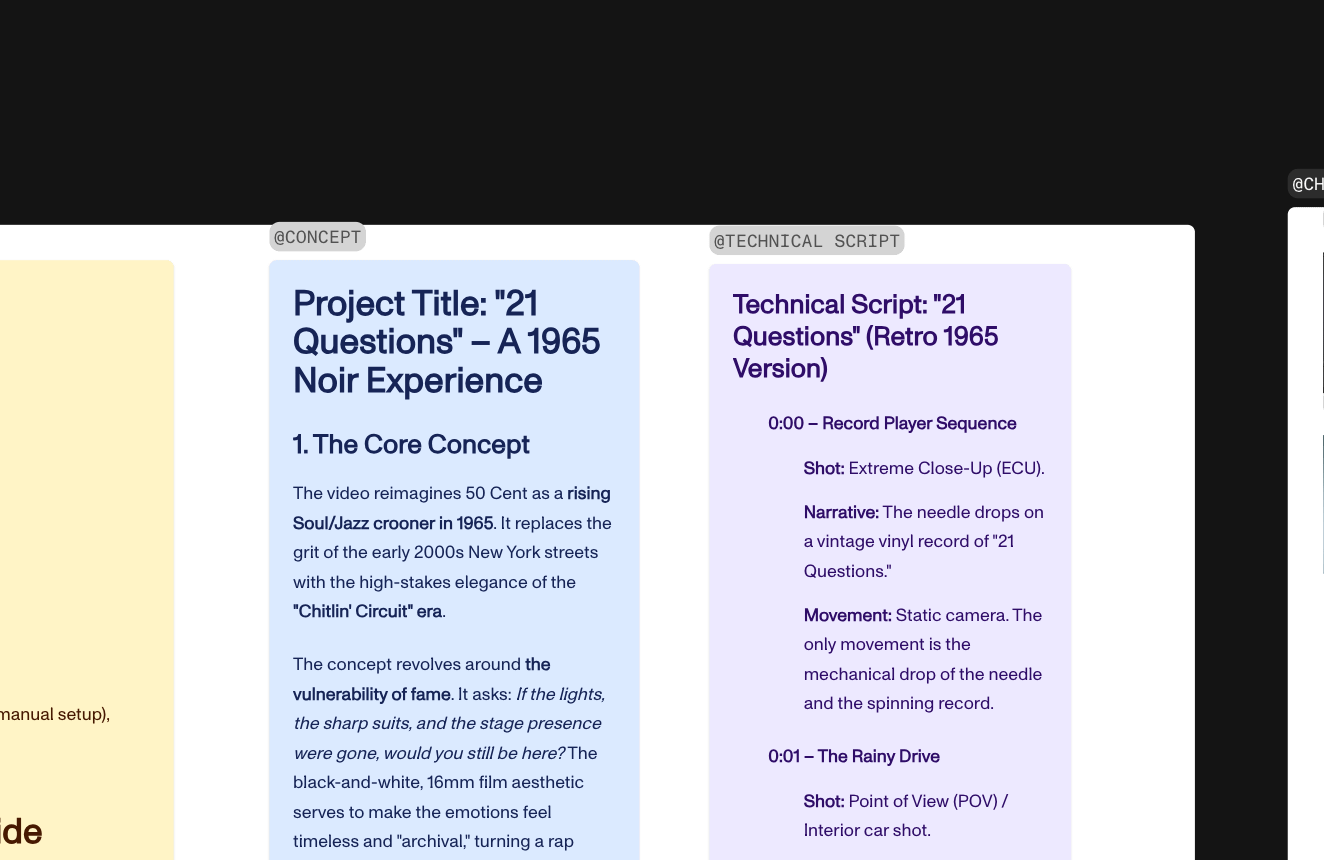
If you are working by hand, write the concept and the script as separate blocks on the canvas and name them clearly. Named blocks can be pulled into a prompt with the @ symbol, so a block called @CONCEPT is something you can point Director at later. A block called “untitled” is not.
Leave this stage with a story you can divide into visible moments.
Further reading: the Director overview and creating Storyboard scenes.
2. Plan the scenes and their order
In Storyboard, a scene is one shot or one moment. Give each one a narrative, a duration, and whatever visual description or reference the next stage will need. Then reorder them in the timeline until the sequence tells the story without you having to explain it.
Some video models support multi-shot prompts, which let you describe several shots inside one generation. Use that only when the model you have selected supports it and the shots genuinely belong together. Otherwise plan and review them as separate scene takes, where you can replace one without losing the other two.
Leave this stage with a scene-by-scene plan, each moment holding a clear purpose and a place in the order.
Further reading: the Storyboard overview and organizing a storyboard.
3. Set the look with visual references
Choose reference images for the characters, locations and visual style that have to recur. Add them to the scenes that need them, or pull an existing canvas asset into a Director prompt with an @ mention. Be specific about what the reference is there to guide: the face, the lighting, the colour, the composition.
Keep the set small. MITO’s reference guide puts the sweet spot at one to three clear references, and warns that more than that, or references that pull against each other, make the result harder to control rather than easier. A reference sheet with fourteen images on it is not a stronger instruction. It is a vaguer one.
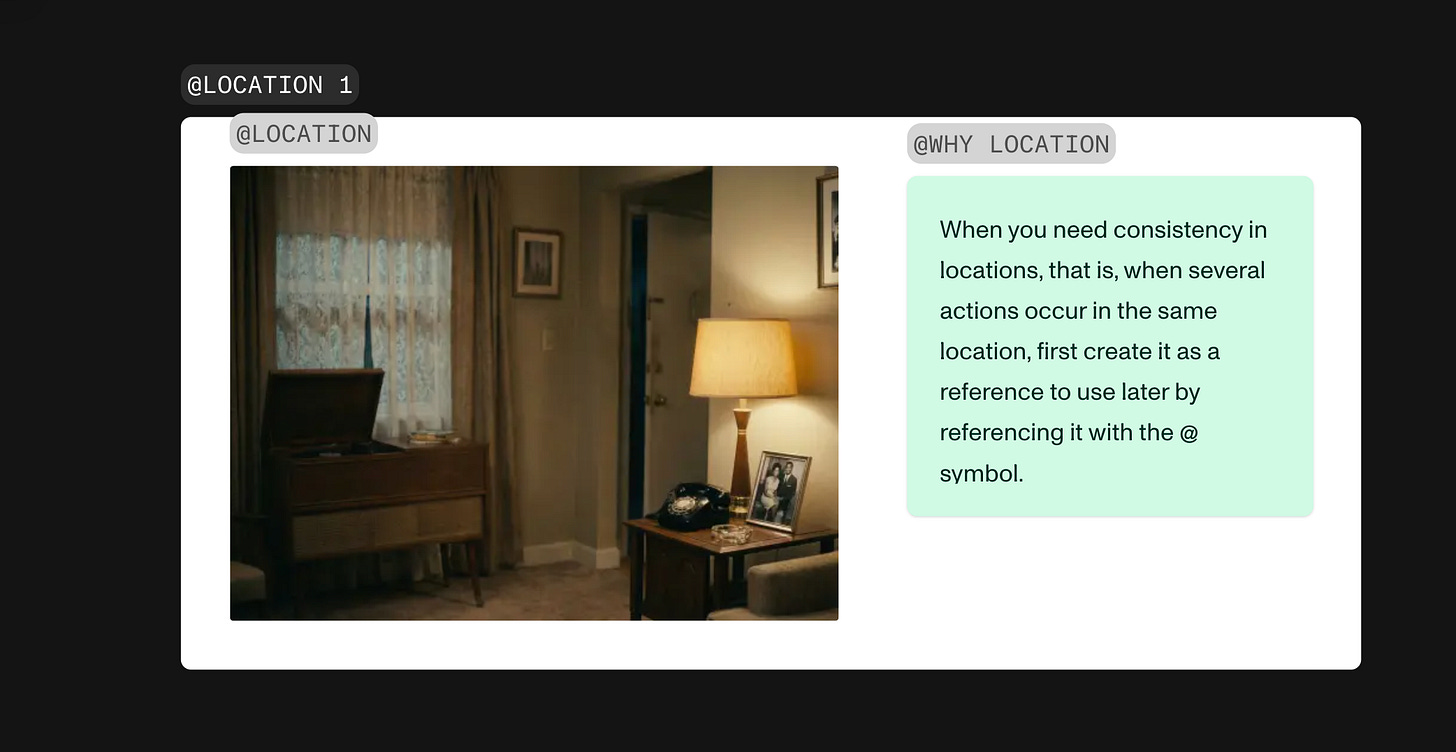
The same applies to places. When several scenes happen in one location, build that location as a reference first and point at it by name afterwards.
Alongside the references, the prompt helpers give you the vocabulary: lens, aperture, aspect ratio, shot, angle, lighting, colour, film stock. You do not have to memorise any of it. Pick from the row and the terms go into the prompt.
Then check the generated images against the look you meant, rather than assuming a reference made every detail match. For the longer version of this, see how to keep AI video characters consistent.
Leave this stage with a small set of approved references and a written description of the look you intend to repeat.
Further reading: referencing assets in prompts.
4. Choose a start frame for each shot
For image-to-video, pick the image the shot should begin on before you generate any motion. Some models also accept an end frame. A chosen start frame lets you judge composition, subject and setting as a still, which costs nothing, instead of judging them inside a video take, which costs credits.
Now read the stills in order, as a sequence. If the story is hard to follow as a run of images, it will not be rescued by motion. Fix the order or the references here.
Leave this stage with a chosen start frame for every shot where image-to-video is the right approach.
Further reading: generating videos.
5. Generate video takes and review them
Select a scene and open its video controls. Choose the generation type, the model, the duration and whichever source frames that model accepts. Write the prompt for the action and the camera move, then look at the credit cost on the generate button before you commit to it.
Generate one take and judge it against two things: what the scene is for, and the references you approved in stage three. If it misses, change one variable deliberately, the prompt or the source frame or the model or the duration, and compare the next take against the last. Changing four things at once tells you nothing about which one worked. If you used a multi-shot prompt, check each beat separately and check that the total duration still fits the piece.
The video model guide covers what each model is actually good at, so the choice is not a guess.
Leave this stage with selected takes that tell the planned story and are ready to assemble.
6. Edit the cut and export the film
Production is MITO’s editor, and it is currently in beta. Use the timeline to arrange and trim clips, adjust the pacing, add music or other audio, and watch the sequence end to end. Then export.
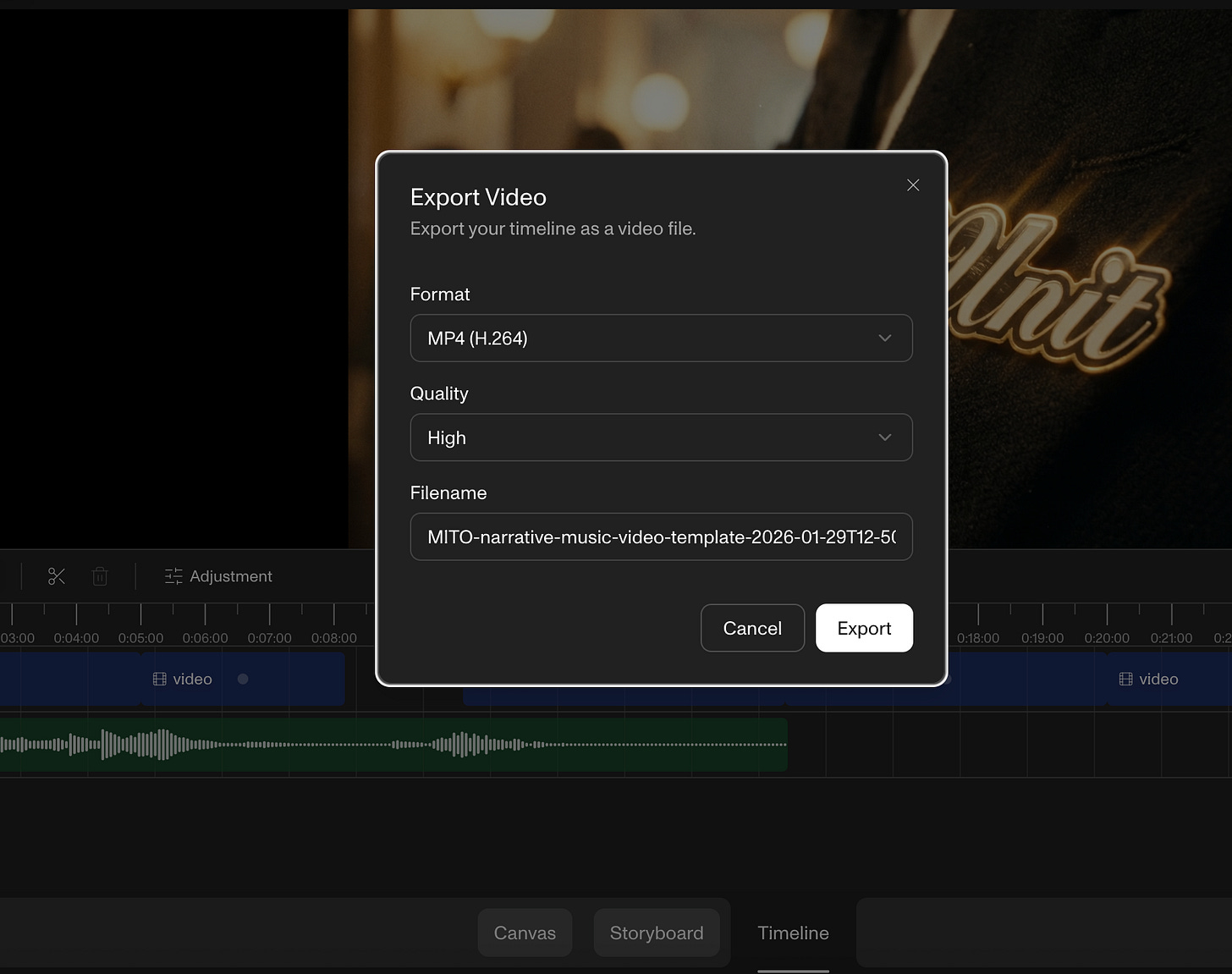
Exports come out as MP4 at 1920x1080 and 24fps, with the quality preset controlling the bitrate. Export runs in the browser through the WebCodecs API, which means Chrome, Edge or Opera. It will not run in Safari or Firefox, so if the export button is doing nothing, that is usually why.
Watch the whole timeline before you export, not just the section you were last working on. Check that the story reads, that the cuts feel deliberate, and that the audio is carrying the images rather than sitting on top of them. Production is in beta, so some of its interface will keep moving.
Optional, once the file exists: publish it to MITO Universe, where finished work is shared and stays discoverable.
Leave this stage with a reviewed edit and an exported file.
Further reading: the Production quickstart and the export guide.
Six stages, in that order. The work that makes a film hold together happens in the first three, before a single frame of video is generated.
Frequently asked
- How do I keep a character consistent across AI-generated shots?
Use a clear character reference in the prompts for every scene that character appears in, and say what the reference is meant to carry across, such as the face, the build or the wardrobe. In MITO, Elements let you save that reference once and pull it back by name with the @ symbol. References give the model visual context rather than a guarantee, so check each take for drift before it goes in the edit.
- When should I use Director?
Use Director when you want help developing an idea, breaking a script into scenes, or working out a creative direction you cannot yet describe precisely. When you already know the scenes you want, build them by hand in Storyboard. Both paths end up in the same place.
- What should I decide before generating video?
What happens in the story, what each scene has to show, and which references or start frames will guide the look. Only then choose the generation type, model, duration and motion for each take. Check the credit cost shown on the generate button before you submit.
- Can one generation contain multiple shots?
Some video models support multi-shot generation. Where it is available you can give each shot its own prompt and duration inside a single generation, and the total length is the sum of those shots. Check what the selected model offers, then review the result shot by shot rather than as one clip.
The AI tool for cinematic video.
Generate, direct, and publish professional videos — powered by the best AI models.
More posts