Your Eighth Day in MITO: Set Up the Workspace, Then Pick What's Next
The last day is the one the person who looks after MITO does once, so nobody else has to think about it again.
Day 8 of 8 in the MITO onboarding series. See all eight days →
This one is for whoever looks after MITO for the team. Everyone else can skip to the bottom, where there is a recap and a short answer to what to do next.
The workspace
Admin setup, a minute and forty.
Workspace is in the left menu, and your plan is at the top of it.
Three numbers. Credits used, credits available now, and credits not yet unlocked. On Enterprise, credits unlock monthly, and what you do not spend stays available until the contract ends. Plans and Billing shows the contract, the monthly unlock and the next unlock date.
Adding people
Add member, then paste the emails. Two decisions follow.
Access. All projects, which quietly includes anything created later, or only the projects you pick, which does not.
Role.
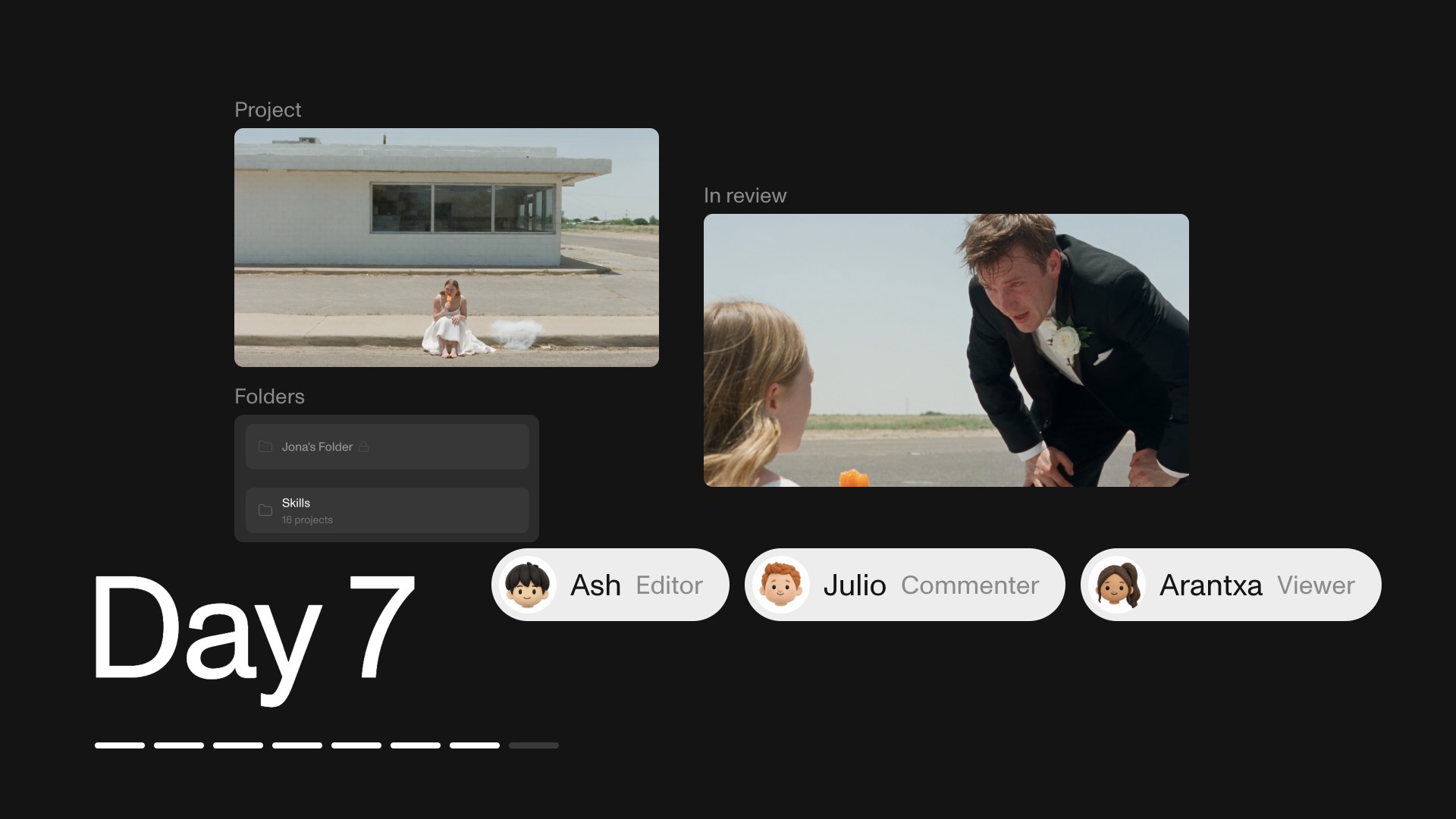
- Commenter. Sees and comments. Does not spend credits.
- Editor. Creates and edits. Spends credits.
- Owner. Manages members, roles and billing.
Add a message if you want one and send. Their access starts when they accept, not when you hit send.
Watching the spend
Every row in the Members list shows a role, an access level, and what that person has spent on images, video and audio over the date range at the top of the page. The row menu changes a role, converts someone to a guest, or removes them.
Edit spend limit puts a monthly ceiling on one person. They get warned at fifty, twenty-five and ten percent remaining, and at zero generating stops until you raise it or the cycle resets.
Set one for every new member. It is the cheapest habit on this list. Nobody notices a limit they never reach, and the one person who does reach it finds out early rather than expensively.
Projects get limits too. The Projects tab shows what each project has spent and takes a ceiling the same way, which is the right tool when the risk is one campaign rather than one person.
That is the week
What’s next, thirty-seven seconds.
Eight days, and you have:
- Made your first image and first video
- Planned shots and cut them together on the Timeline
- Kept a character, a place and a product looking like themselves
- Taken a real brief from upload to delivery
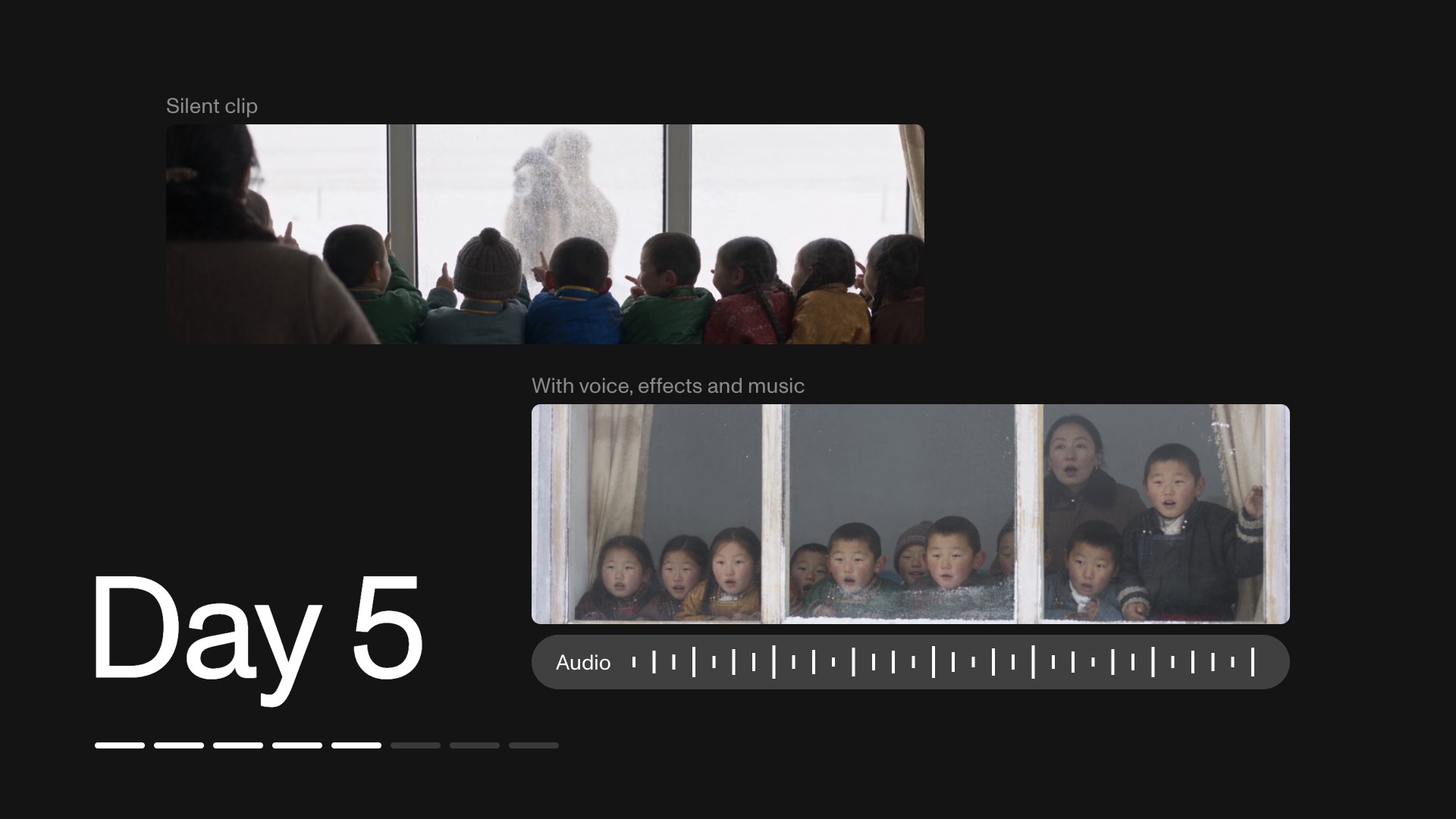
- Cloned a voice and generated sound and music
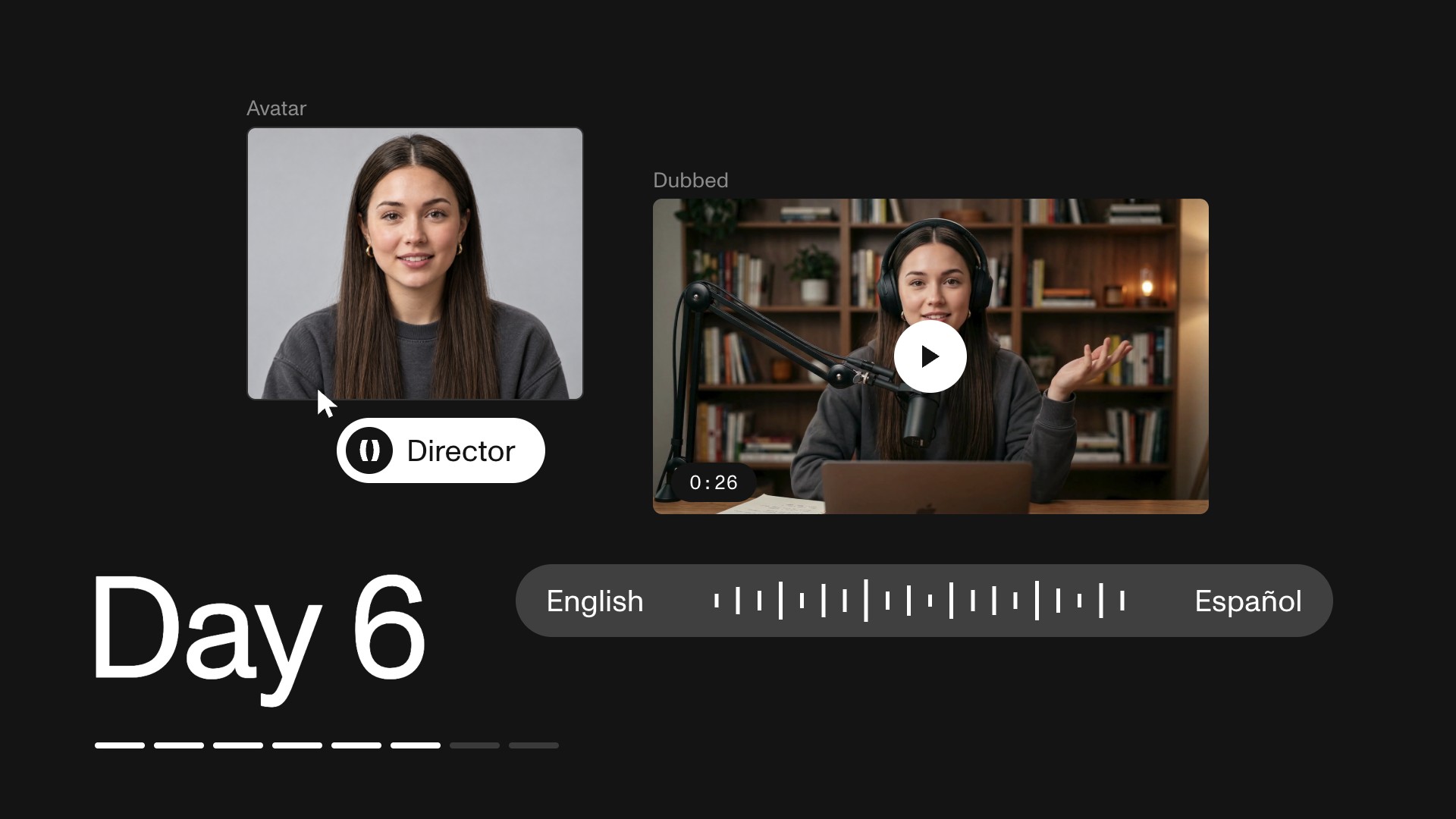
- Made an avatar and dubbed it into another language
- Put the work in folders and got it reviewed
- Set up the workspace
Before you close the tab
If you are an admin, set a spend limit for every new member. It takes two minutes and you will not think about it again.
Everyone else, open the Tutorials tab and pick one thing. Short tutorials cover single features. Longer courses walk through a whole project.
Then make something tomorrow. That is genuinely the whole method. A week of small pieces teaches more than one large piece you never finish.
The short version. Workspace holds the plan, the members and the spend. Commenter sees, Editor spends, Owner manages. Limits go on people and on projects. After that, Tutorials.
Frequently asked
- Where do I manage my team in MITO?
Workspace, in the left menu. Your plan sits at the top, the Members tab lists everyone, and the Projects tab shows spend by project.
- What do the three credit numbers on the plan card mean?
Credits used, credits available to you now, and credits not yet unlocked. On Enterprise, credits unlock monthly and anything you do not use stays available until the end of your contract.
- Where do I see the contract and the next unlock date?
Plans and Billing, from the plan card. It shows the contract, the monthly unlock and the date of the next one.
- How do I add people?
Add member, then paste their emails. Choose their access, either All projects, which picks up new projects automatically, or only the projects you select. Then choose a role, add a message if you want one, and send. Their access starts when they accept.
- What is the difference between All projects and Selected projects?
All projects means they are included in projects created later as well. Selected projects limits them to the ones you tick at the time, and nothing added afterwards.
- What are the workspace roles?
Commenters see and comment but cannot spend credits. Editors create and edit, and they spend credits. Owners manage members, roles and billing.
- Can I see what each person has spent?
Yes. Each row in the Members list shows their role, their access, and the credits they have spent on images, video and audio over the date range set at the top of the page.
- What does a spend limit do?
It sets a monthly ceiling for one person. They are warned at fifty, twenty-five and ten percent remaining. At the limit, generating stops until you raise it or the cycle resets.
- Should I set a spend limit for everyone?
Setting one for every new member is a good default. It costs nothing, it is adjustable at any time, and it means a mistake stays small.
- Can I limit a project rather than a person?
Yes. The Projects tab shows what each project has spent and takes a spend limit the same way.
- Where should the team go after the first week?
The Tutorials tab. It has short tutorials on single features and longer courses that walk through a whole project.
The AI tool for cinematic video.
Generate, direct, and publish professional videos — powered by the best AI models.
More posts