Several Shots in One Generation
Write a prompt that holds three scenes, and know when to split it instead.
A multi-shot AI video prompt puts several shots in one generation by giving each one a time range: “0–0.5s: close-up… 0.5–2s: medium shot… 2–5s: wide shot…”. The model makes one clip with every scene in it, in order, and you split it into separate clips on the Timeline.
The reason to do it is cost. Many video models have a minimum length, often 5 seconds. If you only need a second or two of each shot, three separate clips means paying for 15 seconds. One timestamped prompt gets you all three shots for the price of 5.
Below is the template we used, the clip it made, and the two things the model got wrong.
The whole idea in 20 seconds: three clips cost 15 seconds, one timestamped prompt costs 5, then you split it on the Timeline.
The template
Each line is a time range and what happens in it. The last line holds everything that stays the same across shots.
0–0.5s: close-up, a hand flips the café sign to OPEN.
0.5–2s: medium shot, she ties her apron behind the counter.
2–5s: wide shot, the first customer walks in.
Same café, same woman, warm morning light, handheld camera.
Copy it, swap in your own scenes, and keep the shape:
- A time range per shot. Start at 0 and end at the clip length. The ranges shouldn’t overlap or leave gaps.
- The shot size first. “Close-up”, “medium shot”, “wide shot”. Changing the size from line to line is what makes each one read as a new shot instead of the camera drifting.
- One action per shot. Flip the sign. Tie the apron. Walk in. One short action fits in a second or two.
- A shared last line. “Same café, same woman, warm morning light, handheld camera.” This keeps the place, the person and the look the same from shot to shot.
What we got
We ran the template once on Omni 1.2 Flash: one generation, 5 seconds, 720p, 16:9.
The raw generation, uncut: one prompt, three shots, 5 seconds.
It made all three shots, in order:
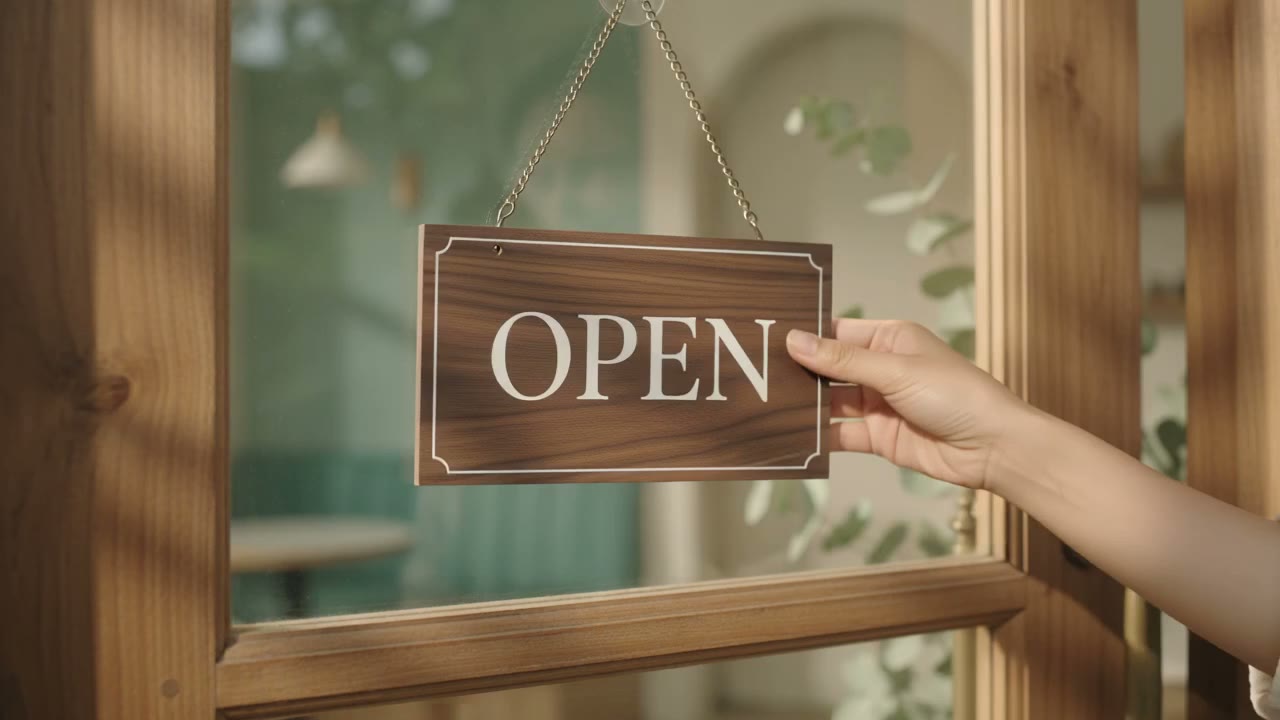
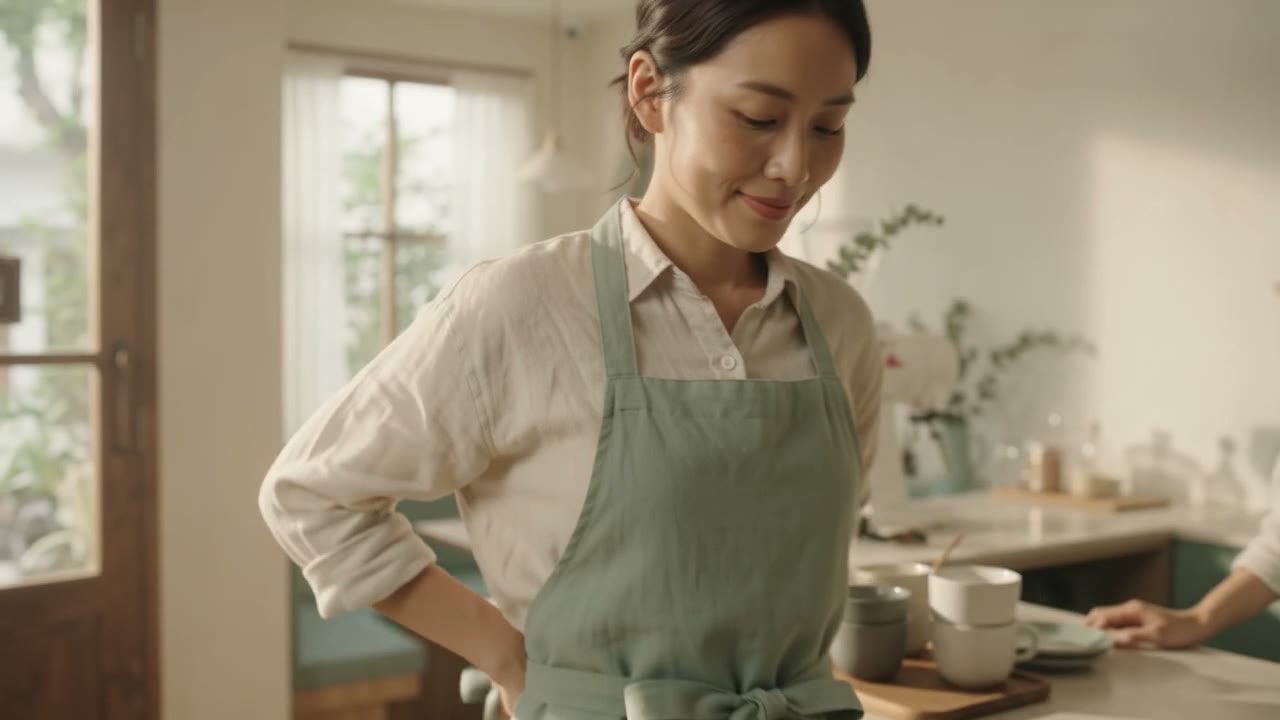
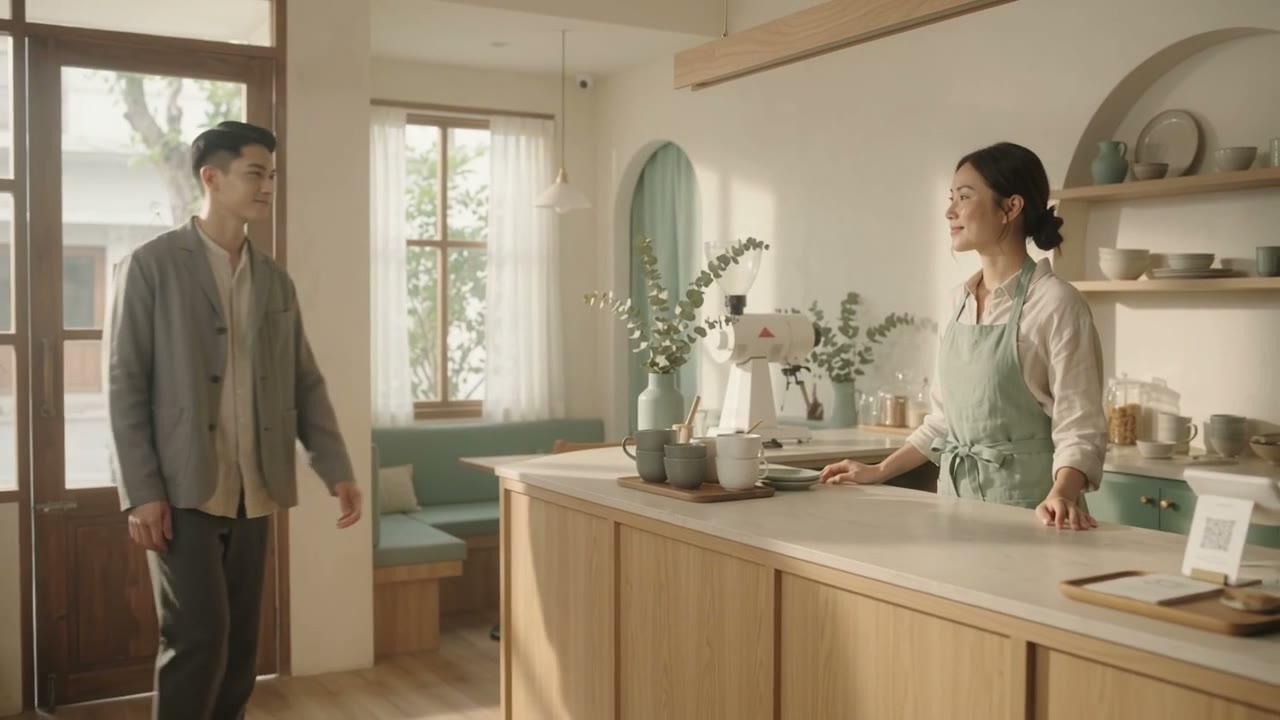
Same café and the same warm light in all three, and the same woman in shots 2 and 3. The shot sizes changed when the prompt said they would.
What went wrong
Two things didn’t follow the template.
The timings were loose. The first shot ran 1.3 seconds instead of 0.5. The model kept the order of the shots, but not the exact lengths. Treat the time ranges as a guide to how the clip is split up, not a frame-accurate edit.
Shot 2 dissolved into shot 3, with a second copy of the woman. Partway through the apron shot, her double walks in from the right, and then the frame dissolves into the wide shot.
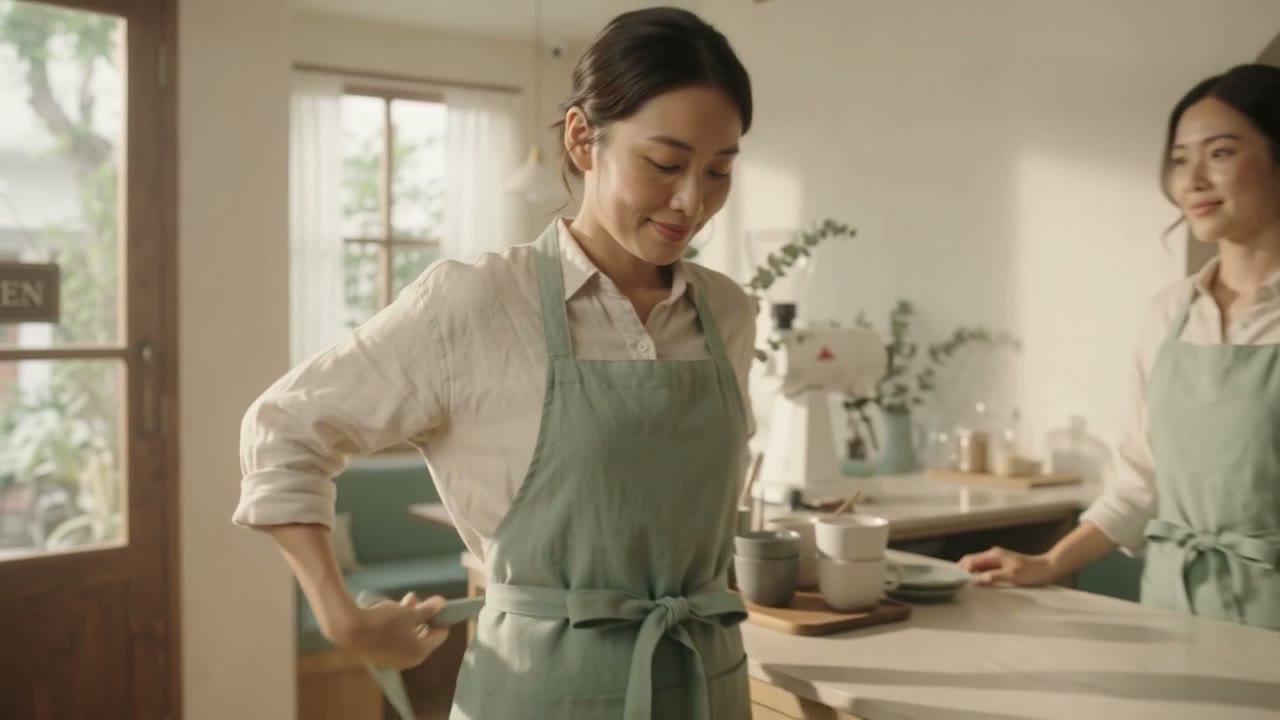
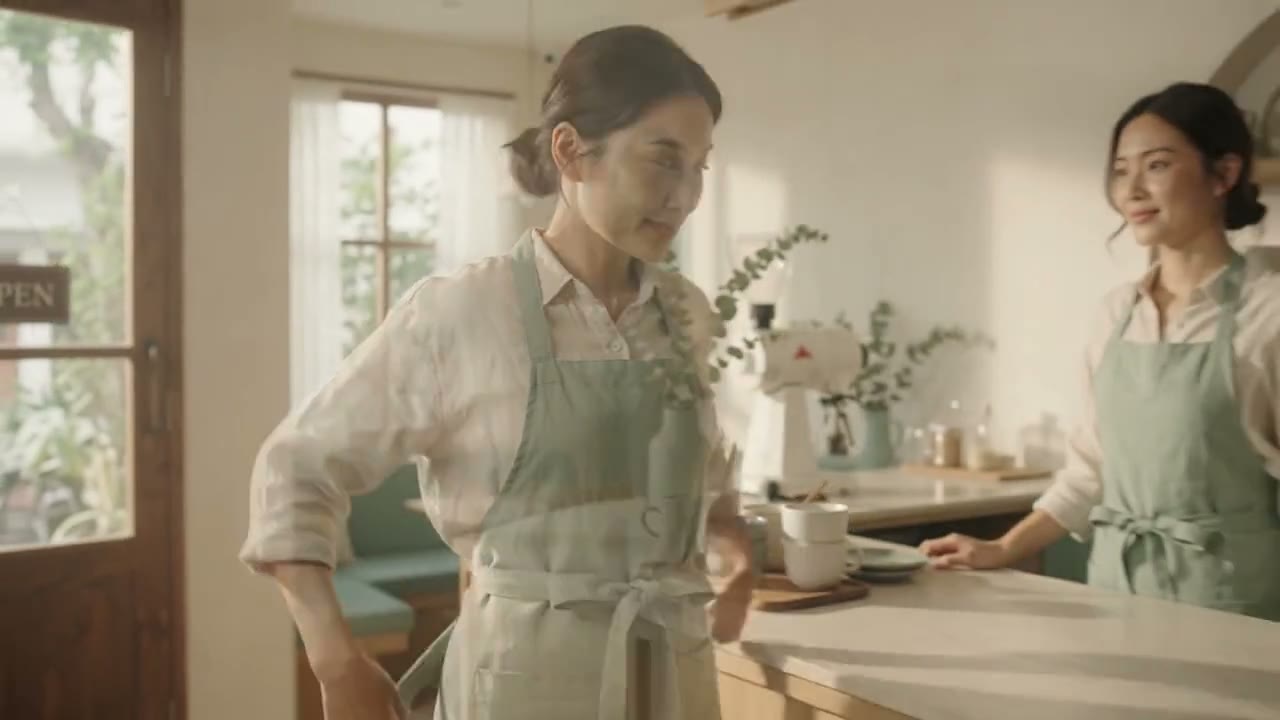
The fix was a cut, which is what you’d do on the Timeline anyway. We removed frames 43 to 60, about 1.8 to 2.5 seconds into the clip, which covers the double and the dissolve. The apron shot is shorter, and the clip goes straight from her at the counter to the wide shot.
After the cut: 4.25 seconds, three shots, with the double and the dissolve gone.
That’s the trade with multi-shot. You get several shots for the price of one clip, but you should expect to trim.
Splitting it on the Timeline
Once the clip is generated:
- Put it on the Timeline.
- Split it at each change of shot. You’ll see the cut points where the shot size changes.
- Delete anything you don’t want, like a dissolve or a stray frame.
- Move the shots apart, reorder them or cut other footage in between. Each one is now its own clip.
More on cutting generated clips in How to Edit AI Footage.
Which model to use
You need a model with multi-shot, and MITO has two kinds:
- Shots written into one prompt, like the template above: Omni 1.2 Flash, Veo 3.1 and Veo 3.1 Fast, Seedance 2.5, Wan 3.0, H3 Max and FLUX 3 Max. We used Omni 1.2 Flash, and it followed the template in order on the first run, with the two problems above.
- A built-in multi-shot mode, where each shot gets its own prompt box: Kling 3.0 and Kling 4.0 (Pro, Standard and Flash). They take up to 6 shots, with up to 512 characters per shot. That gives you tighter control over each shot, at a higher price per second.
If you’re not sure which model fits, ask Director to make the clip from your template. It picks the model and shows you the cost before anything generates.
Try it
- Paste the template and swap in your own scenes. Keep one time range and one action per line.
- Generate one 5-second clip on a model with multi-shot.
- Split it on the Timeline into separate clips, and cut any dissolve or stray frame between shots.
For how to describe the camera in each shot, see AI Video Camera Movement Prompts. How to Reverse-Engineer a Winning Ad uses the same timestamp idea to rebuild a short from a three-beat structure.
Frequently asked
- What is a multi-shot AI video prompt?
It’s one prompt that describes several shots with a time range for each, such as “0–0.5s: close-up… 0.5–2s: medium shot… 2–5s: wide shot…”. The model makes one clip with every shot in it, in order, and you split it into separate clips afterwards.
- Why put several shots in one AI video generation?
To save credits. Many video models have a minimum length, often 5 seconds. If you need only a second or two of each shot, three separate clips means paying for 15 seconds. One timestamped prompt gives you all three in one 5-second clip.
- Does the model follow the timestamps exactly?
Not always. In our test on Omni 1.2 Flash, the shots came out in the right order, but the first shot ran 1.3 seconds instead of 0.5. Use the timings as a guide and trim on the Timeline.
- How do I keep the same person and place across shots?
End the prompt with a line that applies to every shot, such as “Same café, same woman, warm morning light, handheld camera.” It keeps the location, the character and the look consistent.
- What should I do if two shots blend together?
Cut it out. In our clip, the second shot dissolved into the third with a second copy of the woman. We removed about 0.75 seconds on the Timeline and the clip went straight to the next shot.
The AI tool for cinematic video.
Generate, direct, and publish professional videos, powered by the best AI models.